|
PowerPoint and Presenting News
|
Smallest Font Size for Slides

Most PowerPoint designers love to have white space on their slides, but there will always be demands from clients to include more and
more content. Now, this is not a great idea because slides need to be aesthetic and focussed–and adding so much more textual or any
other content negates the very idea of well-designed slides. Adding extra content is, therefore, a compromise that you should avoid.
In the real world, there will be many reasons to cram this content, and the immediate result is that designers have to use a font size
that’s smaller than what they started with. But really speaking, what is the smallest font size that you can use?
Learn more here.
|
|
Invitation: PowerPoint Shortcut Secrets for 2019
Are you interested in getting more done in PowerPoint in 2019 without working longer hours? If so, you are not going to want to
miss this special January training opportunity.

On Thursday, January 17th, I’ve invited a special guest, Taylor Croonquist to share his
best-of-the-best PowerPoint shortcut secrets for 2019 with you.
|
|
|
|
|
|
Presenting Quotes
Sorry, your royal highness: by Jeetendr Sehdev

Jeetendr Sehdev wrote this “shameless” book to tell us why “shameless” sells, and he does an amazing job. You don’t feel bored or
distracted for a moment, and he really knows what he is asking his readers to do, and that’s very forthcoming and refreshing.
|
|
Learn PowerPoint 2016 for Windows
Repair Office and PowerPoint

Microsoft Office 2016 for Windows was released on September 22, 2015. It is the successor of the previous version, Office 2013,
and among the most used programs across the globe. However, after using the Office 2016 programs such as PowerPoint, Word, and
Excel repeatedly, there may be times when these applications face some serious issues such as crashes, corrupted files, etc. And
in some scenarios, you may not be able to run any Office 2016 application. At this point in time, you may wish to perform some
magical process that will resolve the issue.
|
|
Learn PowerPoint 2013 for Windows
Gradient Fills for Text
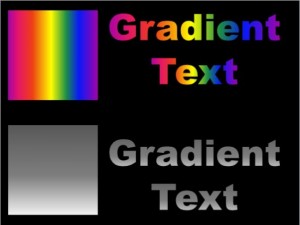
By default, all text that you add within PowerPoint may be filled up with a solid color. And while that’s predictable and good, there
are some other options that you may want to explore, especially for title text or anything that uses text in a larger point size. One
alternative is text filled with a gradient — this can look contemporary and classic, or even ghastly and gaudy! It all depends on the
type of gradients you use to fill your text!
|
|
Learn PowerPoint 2010 for Windows
Creating Anchor Points for Connectors

While PowerPoint lets you attach a connector to any slide object, these connectors can only be attached to wherever you see an
anchor point on the slide object. Most of the time, the location of these anchor points may work well for you — however, in certain
scenarios, you may want additional anchor points at a particular location. The good news is that you can add new anchor points for
shapes and text boxes using the technique explained on this page. For text placeholders though, you cannot add new anchor points. If
you need more anchor points for pictures, it is suggested that you use any shape as a container for a picture fill, and add anchor
points as required for the container shape.
|
|
Learn PowerPoint 2016 for Mac
Gradient Outlines

PowerPoint provides plenty of options to format Shape Outlines, and this tutorial explores an attribute that's rarely associated
with shape outlines but can provide a surprisingly different look, especially when applied to lines that are thicker in weight.
This attribute, Gradient Outlines is not accessible from the Shape Outline gallery in the Ribbon but directly from the
Format Shape Task Pane.
Account Tab in Backstage View
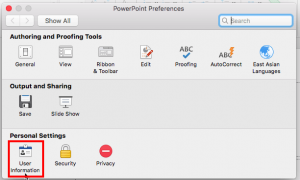
In PowerPoint, and in other Office 2016 programs on the Mac, you typically need to sign in to a Microsoft Account so that you
can access saved settings, customizations, and even some files off the cloud. You typically do this by managing your Account,
right inside PowerPoint or another Office 2016 program such as Word and Excel. The Account tab in Backstage view is not as
full-featured as what you see within PowerPoint 2016 for Windows, but most options can be found elsewhere, as we will explore
within this tutorial.
|
|
|
|
|
|
|
|
|
|
|
|
|
|