|
PowerPoint and Presenting News
|
Every Makeover is Different

Doing makeovers of slides is such a satisfying task–maybe that is because removing the ugly and replacing it with near perfection is a
reward in itself. Over the years, I have understood that the approach required to do any actual makeover is never the same. In the same
way, as the fingerprints of two humans don’t match, the approaches required to do makeovers for two presentations, or even for two
slides are dissimilar.
Read more here.
|
|
Gear Graphics for PowerPoint

Gears -- these denote that things are moving, something is happening. Yes, gears mean action.
Have you ever wanted to use animated or non-animated
gear graphics in your PowerPoint slides? We have
just what you need. These ready-to-use awesome gears will save you tons of time. In fact, you need not spend an hour or two
animating. Because we have included animated variants of all gears.

Use the ones you want -- either animated or non-animated or even both. To use them, all you need to do is copy them and paste in your
own slide.
Download these Gear Graphics for just $10+
|
|
The Evolution of Office Themes

Evolution is an interesting concept because it’s the change that’s natural, logical, and involved. And although Themes (Office
Themes) did not exist in their present form before Office 2007 for Windows, they did evolve from the humble PowerPoint template. And
as you get deeper into how Themes work, you’ll find that PowerPoint uses these Themes in amazing ways, and shares them with Word and
Excel. That’s the reason they are called Office Themes rather than PowerPoint Themes.
Learn about Office Themes and how they work specifically in versions of PowerPoint on both
Windows and Mac.
|
|
Where Are the Office Themes and Templates Located?

Haven’t you seen the Themes that PowerPoint shows you when you want to create a new presentation? Where are those Themes located?
Many times, you want to know why this information as easily accessible as it should have been. Luckily, we will try and solve this
problem in this article.
Learn where Office Themes are located for various PowerPoint versions.
|
|
Where Are Custom Office Themes and Templates Saved?

Have you wondered where the Themes and templates you save from within PowerPoint or other Office applications are located? Remember
that your custom Themes and templates location is different than the location where PowerPoint’s built-in Office Themes are saved.
The location for these Themes and templates is important because you may want to share these with colleagues, clients, friends, or
family. If you know where you can find these Themes and templates, you can make sure that they are copied to corresponding folders on
other computers.
Find locations where your custom Office Themes and templates are saved in various
PowerPoint versions.
|
|
|
|
Learn PowerPoint 2016 for Windows
Working with RGB Colors

We already explored what Color Models are, and we then looked at the RGB color model that uses three primary colors: Red, Green, and
Blue to mix and create almost 16 million colors. All RGB colors have values for all the three colors that you mix: R, G, and B.
Assuming someone has provided you with an RGB value and asked you to add a rectangle of that color to a slide, then how do you
proceed within PowerPoint?
Add Places

While you can open and save files from any file location you access on your computer or network, you can also add more places from
where you can open and save files. You see options to add a place in both the Open and Save As tabs of Backstage view. By default,
your OneDrive location is already available as a place, only if you have signed in. But you can add more places too, as we shall
explore in this tutorial.
|
|
Learn PowerPoint 2016 for Mac
Resize Text Boxes on a Slide

Text boxes in PowerPoint may need to be moved and resized within different areas of the slide. While you may think that selecting and
resizing is all that is to be done, that's not the entire truth because there's so much more you can do even with mere resizing, if
you know that these options exist!
Formatting Picture Placeholders
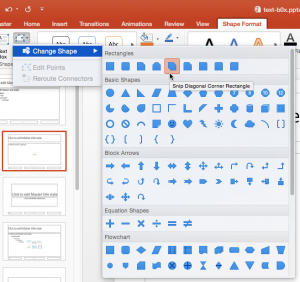
When you are working with multiple pictures on a slide, their position, formatting, and size may be required to be the same across
successive slides. This can be achieved manually using resizing and aligning options, although you will use an inordinate amount of
time making sure that the pictures look consistent slide after slide. Even then, there are chances you may not be too happy with the
results or the time it takes to make these changes. You can get over this problem by using a new Slide Layout with a picture
placeholder. As we learned in previous tutorials, a placeholder is a container that you can use to fill in with all sorts of
content types such as text, pictures, charts, SmartArt graphics, etc.
|
|
Learn PowerPoint 2013 for Windows
Add Places
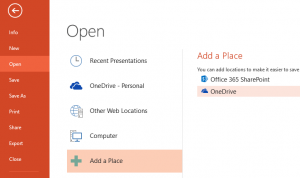
While you can open and save files from any file location you access on your computer or network, you can also add more places from
where you can open and save files. You see options to add a place in both the Open and Save As tabs of Backstage view.
|
|
|
|
|
|
|
|
|
|
|
|
|
|