|
PowerPoint and Presenting News
|
|
|
Difference Between UPPERCASE and All Caps
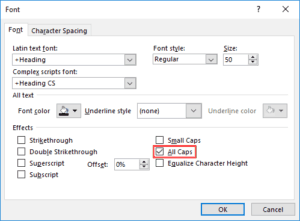
This has been a frustrating issue for many PowerPoint users, and also users of other Office programs. You type some text that is sentence case, but the results
are all capital case! Yes, you can use the Change Case option, but why should you have to do so for each slide? The answer is not too obvious, and to
understand why this happens, you must know that there are two ways to add capitalized text in Microsoft Office programs.
Read more here.
|
|
Use Non-Installed Fonts in PowerPoint
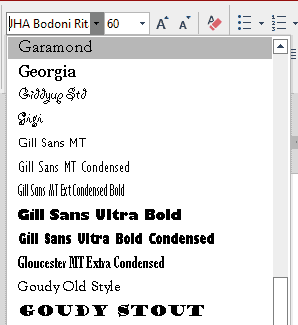
You all know that you can easily change the font for any selected text in PowerPoint, by choosing any installed font on your system. But did you know that
you can use fonts that don’t exist on your system! This is either a trick or a bug and is similar to the analogy of a glass, half full. Some would complain
about the glass being half-empty while others would be satisfied with the glass being half-full! In other words, this is a two-edged sword.
Read more here.
|
|
Learn PowerPoint 2016 for Windows
Adding Commands to Custom Groups

If you want to really benefit from customizing your Ribbon in PowerPoint 2016, then you’ll certainly want to add some commands that are not placed by default
within any of the Ribbon tabs. Or maybe you want a particular command available on the Home tab of the Ribbon. Whatever your intent may be, you cannot place any
commands within the existing groups that are built within PowerPoint. You first need to add a custom group within any of the tabs available in the Ribbon.
Thereafter, you need to populate them with commands.
Touch/Mouse Mode

In PowerPoint 2016, within the Customize Quick Access Toolbar drop-down menu, you will find the Touch/Mouse Mode option. This essentially is a toggle button
that alternates between touch and mouse modes. Touch mode is the default mode when using PowerPoint on a touch device such as the Microsoft Surface or other
tablets, and lets you use the program even without a mouse. And Mouse mode is the default mode for PowerPoint 2016 when working on a non-touch enabled desktop
or laptop. The larger question though is why you can toggle to the Touch mode in a non-touch device. If you are using PowerPoint on a desktop, why you need
the Touch mode?
Reset, Export, and Import Ribbon Customizations

PowerPoint 2016 allows you to customize the Ribbon in a number of ways. You can add Ribbon tabs, add Groups, and populate these with commands. And if you
think you made a mess and were better off with the defaults, then you can always get back to square one. On a more positive front, you can share your
customizations with friends and colleagues, or also your other computers. And you can export your customizations to a file saved as a backup for a rainy day!
|
|
Learn PowerPoint 2016 for Mac
Status Bar

The Status Bar is a thin strip located at the bottom of the PowerPoint 2016 for Mac interface. This area provides information about the active slide and
also provides several View options. To work with options in the Status Bar, you must have a presentation open in PowerPoint 2016 for Mac, otherwise, the
options within the Status Bar will be grayed out.
|
|
Learn PowerPoint
STAMP - Accessibility Add-in
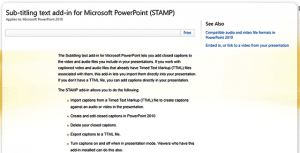
Microsoft has made available STAMP (Sub-titling text add-in for Microsoft PowerPoint), a free add-in for PowerPoint that enables you to create captions for
video and audio files within your PowerPoint presentations. In addition to manually adding captions, you can also work with any media files that have associated
Timed Text Markup (TTML) files. This add-in lets you import the TTML files directly into your presentation. If you don’t have a TTML file, you can still add
captions directly in your presentation. Having said so, TTML captions allow some extra niceties since they can be easily formatted to use text color, text
alignment and other styling elements for the captions.
This add-in works in PowerPoint 2010, 2013, and non-Office 365 versions of PowerPoint 2016. All these are versions that run on Microsoft Windows.
|
|
|
|
|
|
|
|
|
|
|
|
|
|
|