|

PowerPoint And SVG
by Geetesh Bajaj

...Continued from Page 1
Before You Begin
Step-by-Step
Disclaimer
Related Links

Before You Begin
Before we begin inserting SVG content into PowerPoint, copy the
SVG file in the same folder as the actual PowerPoint PPT presentation
file. This way, we will not have to enter a complete absolute path
string later.
For my example, I've used a sample SVG file I created using Jasc's
WebDraw application. It's a simple document with three shapes and
two text strings. You can download it here. (right-click
and choose Save Target As... or similar)
To preview any SVG file just double-click it or drag into an open
Internet Explorer window, subject to the SVG Viewer being installed
on your system.
Back

Step-by-Step
- Open or create a new PowerPoint presentation. Save it in the
same folder as your sample SVG file.
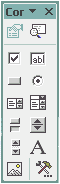
- Choose View -> Toolbars -> Control Toolbox - this will
open the Control toolbar. This is how it looks in PowerPoint
2002. It may look different in your system.

- Near the bottom of this Control Toolbox, you'll find the 'More
Controls' icon, represented by a hammer.
- Click on this icon to reveal a drop down list of available
ActiveX controls.
- Click on the SVG Document option.

- Your cursor will change into a cross-hair - draw a rectangle
anywhere on screen - don't bother about the size and location
now - we'll take care of that later.
- Your rectangle will be invisible, since its only a placeholder
- however, if you did not click anywhere, you'll find it surrounded
by eight handles.

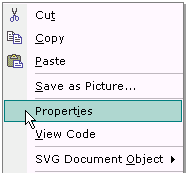
- Right-click anywhere inside the rectangle to reveal a fly-out
menu. Choose the Properties option.

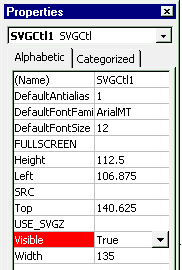
- The SVG Ctl Properties opens.

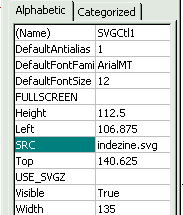
- Click on the blank cell next to the SRC option and just fill
in the name of your SVG file - we need not enter any path since
the SVG file has been preserved in the same folder as the presentation.
Unfortunately, the Control automatically picks up the absolute
path of the file, so you will have to re-edit the path if you
were to change folders, drives or computers.

- Position and resize the control as required on the actual slide.
- You're done! You may want to try out the many other options
included in the SVG Ctl properties box.
Back

Disclaimer
This is just an experiment. No support can be provided for the
techniques listed here. Also, I don't suppose either Microsoft
or Adobe would offer support on this subject.
However, both Microsoft, Adobe and other newsgroups are well visited
and intelligent interactions are possible on both the forums.
microsoft.public.powerpoint
adobe.svg
coreldevelopers.svg
trajectorypro
Back

Related Links
Microsoft's KB Article
ID Q191531 shows how to create a shortcut for the ActiveMovie
Activex Control.
There is a SVG
Developers group available at e-Groups.
Long before Adobe, IBM created its own SVGView as
parts of its AlphaWorks program.
The SVG Foundation provides
links to many SVG related sites.
Back

|