
This is the print version of this page. All content is copyright Indezine.com 2000-2026.
Learn about Live Preview in PowerPoint 2010 for Windows. Using Live Preview, you can find out how a particular choice will change the appearance, without committing any change.
Author: Geetesh Bajaj
Product/Version: PowerPoint 2010 for Windows
OS: Microsoft Windows XP and higher
What is Live Preview
How Live Preview Works
Enabling and Disabling Live Preview
Live Preview first made its debut in PowerPoint 2007, and continues being available in PowerPoint 2010 as well. Unfortunately, PowerPoint 2007 had no Live Previews for Chart Styles and that ability is not made available in PowerPoint 2010.
Live Preview allows you to see/preview how an actual change will look on the slide before you decide to accept or decline that change.
Since Live Preview is more of an interactive option than an interface element, it's not part of the visible PowerPoint 2010 interface, it is active only within some of the options such as Themes, fonts, Quick Styles, etc. With Live Preview you can see a quick view of how the formatting options look on the selected object before you commit to them.
BackFollow these steps to use Live Preview:
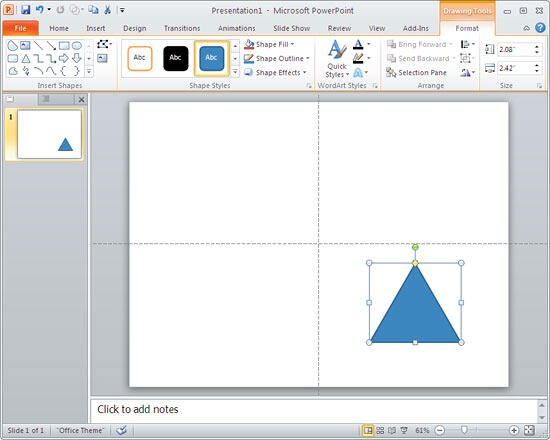
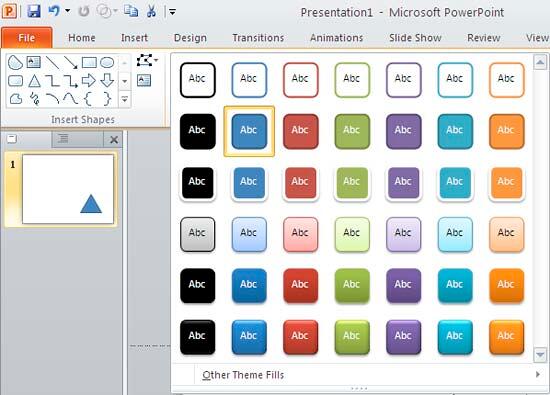
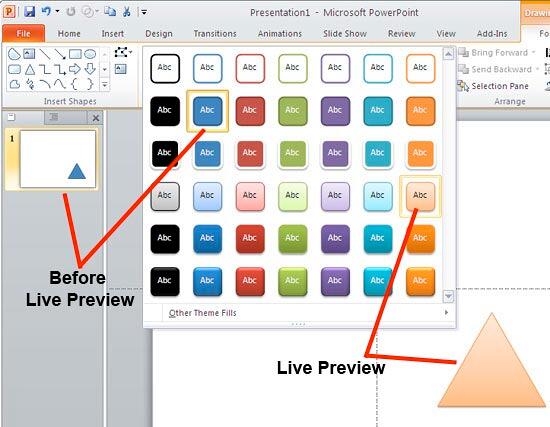
While the Live Preview feature works great most of the time, some older computers may not have the processing power required to show live previews in real time, this might lead to sluggish performance.
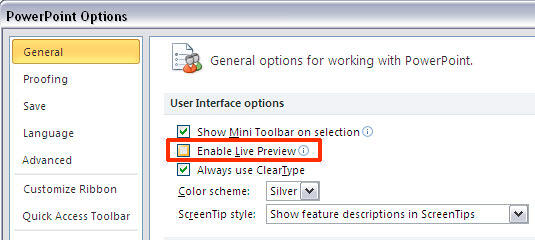
Fortunately, you can disable Live Preview by following these options:
01 05 12 - Interface Overview: Live Preview in PowerPoint (Glossary Page)
Live Preview in PowerPoint 365 for Windows
Live Preview in PowerPoint 365 for Mac
Live Preview in PowerPoint 2019 for Windows
Live Preview in PowerPoint 2016 for Windows
Live Preview in PowerPoint 2013 for Windows
Live Preview in PowerPoint 2007 for Windows
You May Also Like: Using Humor to Support a Serious Presentation | Animals - E PowerPoint Templates


Microsoft and the Office logo are trademarks or registered trademarks of Microsoft Corporation in the United States and/or other countries.
