Trigger animations work with PowerPoint 2002 and above. In this
exercise, we'll look at a basic trigger animation. You can download the
sample presentation here... (around 75 kb)
You'll need two images to illustrate the trigger animations -
I've used images downloaded from Microsoft
Office Online's Clipart section.
Create a new presentation (Ctrl + N) and insert a blank slide.
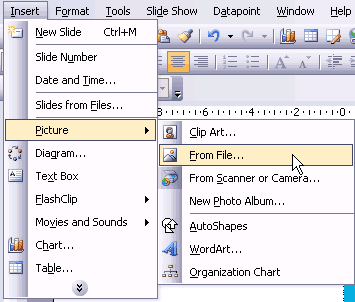
Insert two images of the same size within this slide - choose
Insert | Picture | From File. Keep both of them in different
areas of the slide.
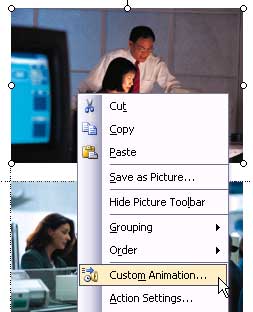
Right-click one of them and choose Custom Animation from the
resultant menu. This will activate the Custom Animation task
pane.
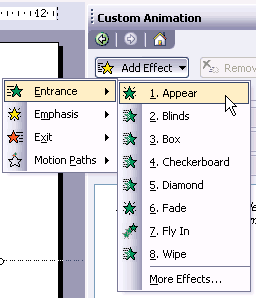
Click the 'Add Effect' button and then choose an Entrance animation.
I've chosen the Appear animation since that provides the most
optimum clickover effect.
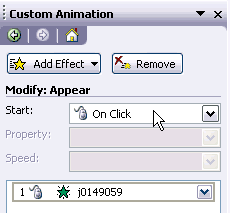
By default, PowerPoint chooses "On Click' for the Start
options. That's what we want so don't alter that.
Below that option, you'll find the name of your image in a
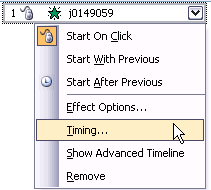
listing of animations. Besides the name, you'll find an arrow
that reveals a drop-down menu on being clicked. Choose the Timing
option in that menu.
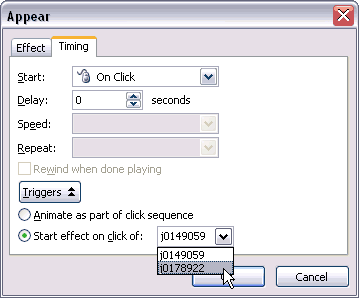
This will open the Timing tab of the animation dialog box.
Click the 'Triggers' button so that more options are visible.
Choose the second option that reads 'Start effect on click of:'
and choose the name of the second image we inserted within the
slide. Click OK.
Place both the images one on top of the other (that's why we
chose images of the same size) and play the presentation. Clicking
on the visible image should show us the other image. If that
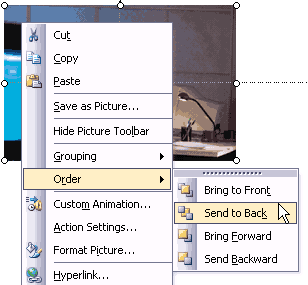
doesn't work, right click the image that's visible and choose
Order | Send To Back (or Send Backward multiple times depending
on how many objects you have onscreen).
Save your presentation.
Bring Alive your PowerPoint!
PowerDesign Sets - a selection of coordinated PowerPoint templates
that go further than normal templates. PowerDesign Sets provide you
with the flexibility of variations within a particular design - thus
50 sets can be output as 900 design possibilities!!!
The above thumbnails represent just a single PowerDesign Set.