
This is the print version of this page. All content is copyright Indezine.com 2000-2025.
Read an exclusive book excerpt from Perfect Medical Presentations.
Author: Terry Irwin and Julie Terberg
Product/Version: PowerPoint
PowerPoint Resolution
Printer Resolution
Increasing Image Size
Conclusion
Updated Information
PowerPoint defaults to a resolution of 720 x 540 (approximately the same as digital video). In PowerPoint, select File > Page Setup and you'll see the page is set to 10 x 7.5 inches (25.4 x 19.05 cm). The problem with this dimension is that PowerPoint will scale your presentation visuals either up or down, depending on your current display setting (see above).
So how do you fix this? Using 1024 x 768 for this example, divide each dimension by 72 ppi (pixels per inch). 1024 divided by 72 = 14.22 inches (36.19 cm). Enter this for page width. 768 divided by 72 = 10.66 inches (27.08 cm). Enter this for page height. Your PowerPoint file is now perfectly set for a 1024 x 768 display (Fig. 4.4).
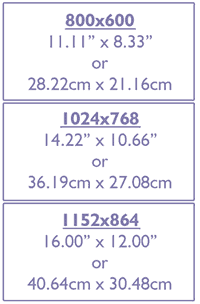
Figure 4.4 - Page set up for different display settings.
Note!!!
You can save these settings, and every time you open PowerPoint, the blank template will already be formatted for your display. Select File-Save As, choose 'Design Template' as the file type, and type 'Blank' as the filename (the .pot extension will be added automatically). Try it out: select File > Close, then File > New, choose Blank as the template. Select File > Page Setup and note that your page setup has been updated.
Why should you change the Page Setup? If you keep the default setup, PowerPoint will automatically stretch the slide show to fit your display settings. The difference may not be apparent with every show. However, when image quality is very important to your presentation, and you have spent time resizing and optimising your images to fit your display, then you should change the page setup.
The number of pixels (or dots) across a line (the width) of your printed image describes the printer resolution. This is determined by the quality, or settings, of your printer and is a form of output resolution. You can calculate what printed image size you can safely achieve from the dimensions of the original image. A 3,000 by 2,000 pixel image from a 6-megapixel camera printed at 300 dpi will be 10 inches across the horizontal axis (3,000 divided by 300).
Looking at this from another viewpoint, a 1,500 by 1,000 pixel image printed at a size of 10 inches will be printing at a resolution of 150 dpi (1,500 divided by 10). You don't need to remember this, but you do need to understand it (Fig. 4.5).
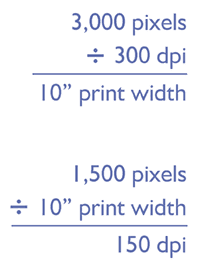
Figure 4.5 - Calculating print sizes.
If you are going to print your images, you will need to know the resolution of your printer. Clearly, printing an image that resolves to 600 dpi on a 300 dpi printer is just a waste of disk space; you may as well save it at a resolution of 300 dpi. Remember from Chapter 2 that we recommend saving your original image as a master file at the highest resolution available, you may buy a new printer!
There might be an occasion when you want to increase rather than decrease the dimensions of an image, possibly to make a large poster or to use an image from the web in a presentation. If you just drag the corner of the image to increase its size, or even increase the dimensions using Photoshop Elements, it will pixilate. This may not matter if the image is to be viewed at a distance, but there is a better way to achieve optimum results.
The reason that the image pixilates is that there are gaps between pixels as they are stretched apart. You can use Photoshop Elements to fill those gaps in with color. But as explained in Chapter 3, this can result in a blurred image. The result will never be as good as an original high-resolution image but it can adequate for most tasks.
Photoshop can best guess what color each pixel needs to be. Using Photoshop Elements, open 'lowresolution.jpg' from the Chapter 4 folder on the CD (Fig. 4.6). This is a small image, suitable for use on a website, but we want to enlarge it to use on a poster. You might want to try enlarging it just by increasing the image width to 10 inches by adjusting the image width using Image > Resize > Image size (make sure you choose inches for the scale and that the image is not resampled by unticking the box at the bottom). To see the entire image select View > Fit on screen. The result is pretty disappointing. Now try 'interpolating' the image, by which we mean resizing and getting Photoshop to fill in the gaps between pixels.
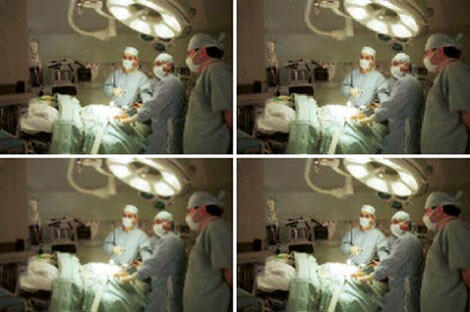
Figure 4.6 - Top left, low resolution image;topright, nearest neighbor resampling;bottom left, bilinear resampling;bottom right, bicubic resampling (based on a photograph by Royal College of Suegeons Photographic Studios).
Open the image size dialogue box again (Image>Resize>Image size). After changing the image width to 6 inches, tick the box at the bottom labeled 'Resample Image.' You now have three choices. These are the three methods of interpolation used by Photoshop: 'Nearest Neighbor', 'Bilinear', and 'Bicubic.' 'Nearest Neighbor' does what the name suggests; it chooses a color the same as the nearest pixel (Fig. 4.6 top right). 'Bilinear' chooses a color between neighboring pixels, creating a smoother effect (Fig. 4.6 bottom left). 'Bicubic' is what we want (Fig. 4.6 bottom right). This is the slowest technique, as it will select a color based on an average of the nearest 16 pixels. Select 'Bicubic' and click 'OK.' The image is now bigger, but does not pixilate as much. If it looks a little soft, you can sharpen it by selecting Filter > Sharpen > Unsharp mask. This increases the sharpness of any image, but beware, only use this once on each image and use it after all other changes have been made.
Note!!!A word of caution regarding interpolation: you can increase image sizes by any amount that you want but image quality deteriorates the more you try to do this and it is unwise to increase by much more than 150%.
It is always best to try to anticipate and prevent such problems. One of the most common images that you might want to enlarge may be a 35mm slide. When scanning slides, use as high a resolution as you can, even the highest available on your scanner. Enlarge the image to the size that you need and then compress it and save it as a .jpeg.
The issue of resolution is important but simple!
When you save your master image always save it at the highest resolution available, without enlarging it. When subsequently using images, think of the output resolution. For presentations or websites, save copies of the image at screen resolution (approximately 800 to 1024 pixels wide). For printing purposes, save at the resolution of your printer (typically 300 or 600 dpi).
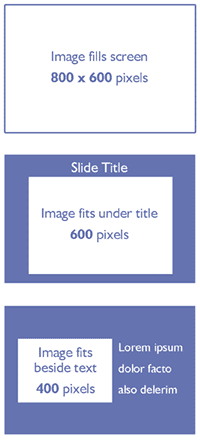
Figure 4.7 - Sizing images for 800 by 600 display setting.
In PowerPoint, an 800-pixel-wide image will fill the screen (if your display is set for 800 x 600 pixels). If you want to use a title above the image on your slide, choose approximately 600 pixels wide. If you are going to place the image beside some text, choose 200-400 pixels for the width (Fig. 4.7).
We're always learning new tips and tricks, and in this regard, want to pass along updated information regarding PowerPoint Resolution. The section in Chapter 4, PowerPoint Resolution, suggests that you change your Page Setup in PowerPoint to match common display settings. We have since learned that this may not be the optimal solution for perfectly sized images in PowerPoint.
Troy Chollar, a Microsoft PowerPoint MVP and the President of TLC Creative Services, Inc., has written a very informative article on how to develop right-sized Photoshop graphics for PowerPoint, and has granted us permission to excerpt here.
The default Page Setup in PowerPoint is 10 x 7.5 inches at 72 dpi (monitor resolution.) Currently, the most common display setting is 1024 x 768 pixels. If you set up a new file in Photoshop at 72 dpi and 1024 x 768 pixels, you will achieve an image sized at 14.222 x 10.667 inches. An image this size will be larger than your PowerPoint page. You could change the PowerPoint Page Setup to match these dimensions, but the problem with this is that PowerPoint is limited to sizing at one hundredth of an inch, leaving you with a slight variation in size.
Troy's solution for perfectly sized images (the best one we have found!) is to change the dpi in Photoshop to 102.4, leaving the pixels set for 1024 x 768. This produces an image of 10 x 7.5 inches - the exact size of our PowerPoint page. To size smaller images for PowerPoint, leave the dpi at 102.4 and change the pixel dimensions accordingly (512 x 768 pixels for half-page images, 512 x 384 pixels for quarter-page).
You May Also Like: Canva’s Infographic Templates: Conversation with Liz Mckenzie | Brazil Flags and Maps PowerPoint Templates


Microsoft and the Office logo are trademarks or registered trademarks of Microsoft Corporation in the United States and/or other countries.
