Introduction
About Articulate Quizmaker
Download and Installation
Using Articulate Quizmaker
Publishing from within Articulate Presenter
Pricing and Support
Conclusion
Introduction
Online quizzes have so much potential. They can work so well as part of a e-learning course, they test your knowledge, and even help you learn more in a supportive way. And then you can see almost immediately how well you fared!
There are many applications out there that let you create online quizzes, but Articulate Quizmaker is one of the easiest and more featured alternatives that lets you create a quiz without any programming abilities. Such quizzes can be used within a website or a presentation. And Articulate Quizmaker does integrate seamlessly with the Articulate Presenter product that we reviewed last week.
Let's learn more.
Back
About Articulate Quizmaker
Articulate Quizmaker is from Articulate, a New York based company that also creates the Presenter and Engage products. You can learn more about Articulate and download a free trial version of Quizmaker from their site.
Articulate Quizmaker allows you to create quizzes, assessments and surveys without any programming using simple wizards. The output is a Flash SWF movie.
Quizmaker's repertoire comprises 21 graded and survey question types such as true/false, multiple choice, fill-in-the-blanks, matching, hotspot, and more. It allows you to incorporate images, Flash movies and audio. The output is customizable and includes interactivity. The file sizes are small enough so that the content can also be sent by e-mail.
My contact at Articulate for this review was Mark Schwartz. Thank you, Mark.
Back
Download and Installation
Once you download a trial, or buy the full version, run the setup routine and follow the instructions.
If you purchased the product, as opposed to running a trial version, you will be prompted to activate the product when you run it for the first time.
Back
Using Articulate Quizmaker
Follow these steps to get started with creating your first quiz in Quizmaker:
- From the Windows Start menu, choose Start | All Programs | Articulate | Articulate Quizmaker 2.
- This opens Articulate Quizmaker as shown in Figure 1. Opt to create a new quiz by choosing the Create a new Articulate Quizmaker Quiz option.
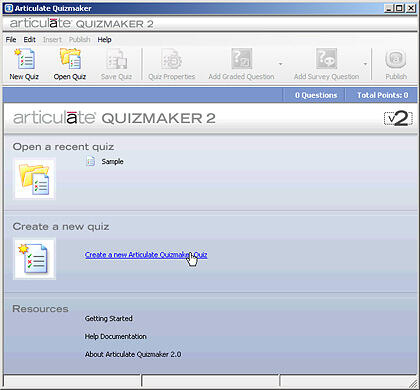
Figure 1: Articulate Quizmaker - You will now see the dialog box shown in Figure 2. Enter the quiz title in the text field given and select the type of quiz. For this tutorial, we decided to create a graded quiz. Click Next.
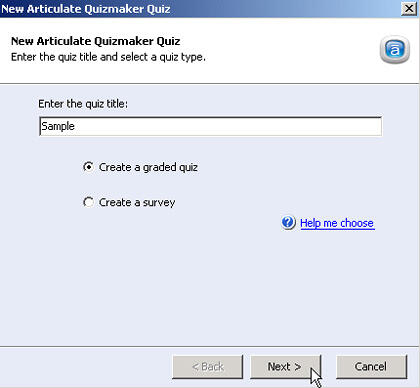
Figure 2: Create a graded quiz - You will now see the Articulate Quizmaker interface, as shown in Figure 3. Initially, the interface appears empty.
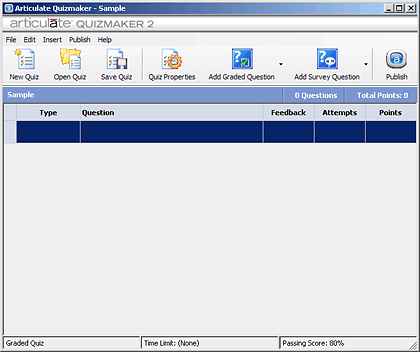
Figure 3: Articulate Quizmaker interface - Since we selected the graded quiz option earlier, we can now add any of the question types that a graded quiz supports. We selected the True/False option, as you can see in Figure 4.

Figure 4: Add your quiz questions
Note: Every quiz type has a different interface.
- This opens a True / False dialog box, as shown in Figure 5.
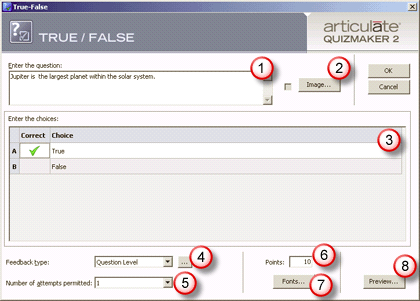
Figure 5: Add your True / False quiz questions. - The options are explained below:
1. Enter the question
- Enter the question text box allows you to type in your question.
2. Image
- Image allows you to include an optional image related to question. You don't have any control over how and where the images are placed although QuizMaker does automatically resize the image and also provides a zoom button. Do experiment with image dimensions to see which works best for you. Image file formats supported are JPEG, GIF, PNG, and SWF.
3. Enter the choices
- Enter the choices allows you to select the answer according to the question. In this case, we just have to choose if it is true or false, but for other question types, the choices will differ.
4. Feedback type
- Feedback type in this case provides two options: None or Question Level. None provides no feedback to a quiz participant. Question Level, on the other hand launches a new dialog box as shown Figure 6. Here you can provide more detailed information to the participant to make your quiz more interactive and educational.
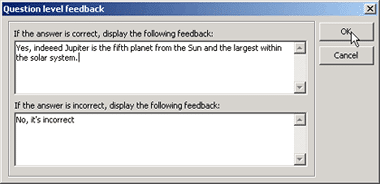
Figure 6: Question Level Feedback 5. Number of attempts permitted
- Number of attempts permitted allows user to keep guessing answers until the correct choice is selected. Obviously, for a true/false type question, you don't want this to be higher than one attempt!
6. Points
- Points allows you to allot value/marks for each of the questions.
7. Fonts
- Fonts opens a dialog box where font size for questions and answers can be set.
8. Preview
- Preview allows you to see the preview of the selected question.
- When you are satisfied with the question, click the OK button to save. Repeat the same procedure and add as many questions you want.
- Once's you are done, save the quiz and click the Publish button, as shown in Figure 3, previously on this page. Doing so summons the Publish dialog box, as shown in Figure 7, below.
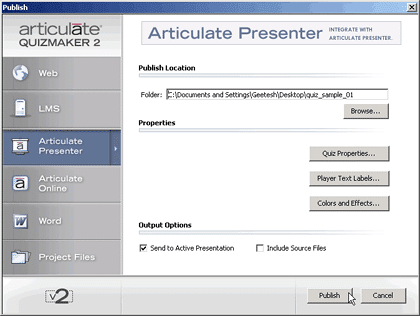
Figure 7: Publish your quiz - The Publish window enables you to choose from different options for various output formats. Choose as required, and click the Publish button. Quizmaker supports the SCORM 1.2, SCORM 2004, and AICC specifications so you can publish quizzes to your standards based Learning Management System (LMS) where they can be managed and tracked.
Back
Publishing from within Articulate Presenter
If you have Articulate Presenter and Microsoft PowerPoint installed, then Quizmaker provides more options. You can also access the entire Quizmaker application from within the options in the Articulate menu within PowerPoint.
- Open any presentation in PowerPoint, and then choose the Articulate | Quizzes and Learning Games | Insert Quizmaker Quiz option, as shown in Figure 8, below.
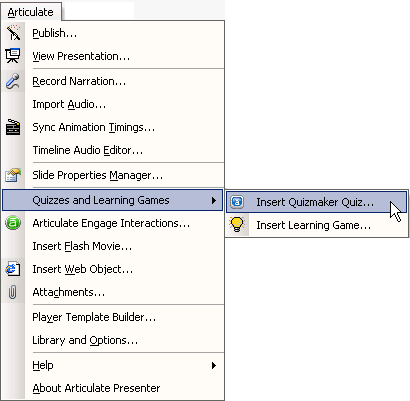
Figure 8: Articulate Presenter menu in PowerPoint - This action will open the Insert Articulate Quizmaker Quiz dialog box as shown in Figure 9, below. Choose to Create new Articulate Quizmaker quiz and press the OK button. If you already have created a quiz earlier in Quizmaker, you can also insert that quiz straightaway.

Figure 9: Insert Articulate Quizmaker Quiz - If you opted to create a new quiz, you'll see the same Articulate Quizmaker interface and options as explained in the preceding section on this page. When you are done, and click the Publish option in Quizmaker, you'll be directed to the Articulate Quizmaker Wizard that provides optimized settings for playing the quiz in a PowerPoint presentation. Choose options as required, and the quiz will be inserted on PowerPoint slide, as shown Figure 10, below.
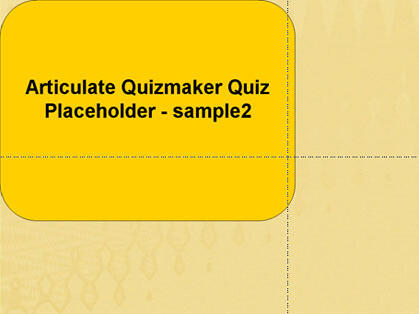
Figure 10: Articulate Quizmaker placeholder in PowerPoint - Note: Such inserted quizzes cannot be viewed within PowerPoint. To view, you must publish the quiz using output options in Articulate Presenter. Read more in our Articulate Presenter review.
Back
Pricing and Support
Articulate Quizmaker costs $399.
Support options include e-mail, knowledge base, community forums and documentation. Articulate also provides a premium support level.
Back
Conclusion
Articulate Quizmaker is a one trick pony that also works great as an individual quizmaking application. However, in synergy with Articulate Presenter, it enriches the entire Articulate e-learning environment. Either way, if you already own Articulate Presenter or not, Quizmaker is a great application.
Back


