
This is the print version of this page. All content is copyright Indezine.com 2000-2025.
AKVIS Decorator, a Photoshop plug-in allows you to change the surface of a selected object.
Author: Geetesh Bajaj
Product/Version: PowerPoint
It's certainly possible to change the color or texture of a surface in Photoshop using the available tools. For instance you can change the color of a car, or the pattern in a dress or wallpaper within a picture. Not surprisingly, this process can be painstakingly slow, and is not very intuitive.
AKVIS Decorator, a Photoshop plug-in from AKVIS allows you to change the surface of a selected object easily with results that look very real. A self-contained library includes a plethora of patterns that you can apply. From fabrics to stones to metal and food—as also natural elements. Decorator follows the underlying features such as the highlight, shadows, and texture of the original, selected object to make the applied color or texture look natural.
Decorator is from AKVIS, a company based in Russia that specializes in graphics programs and scientific research. Apart from Coloriage, AKVIS also creates other Photoshop-compatible programs like Retoucher, Chameleon, Stamp, Sketch, and Enhancer.
You can download a free 10-day trial version of Decorator from the AKVIS site.
Here’s how you can use AKVIS Decorator to apply a new texture:

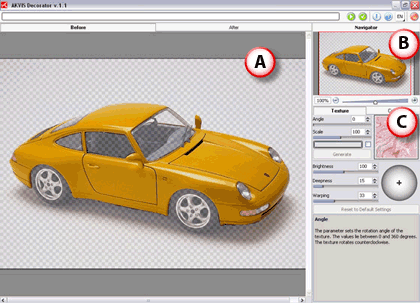
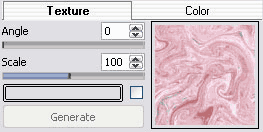
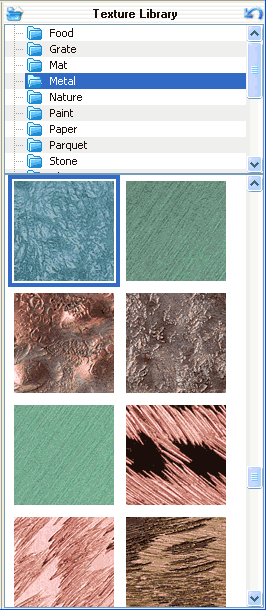

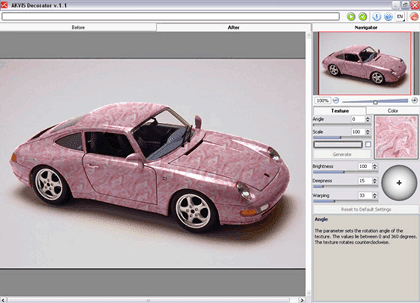

| Photoshop Versions: | 5+ |
| Platforms: | Windows, Mac |
| Site: | AKVIS |
| Price: | US$54 and above |
| Trial Version: | 10 days |
Photoshop: AKVIS Plug-ins (Glossary Page)
You May Also Like: Smarter Slides Add-in for PowerPoint: Conversation With Lennart Wiehler | World Regions PowerPoint Templates



Microsoft and the Office logo are trademarks or registered trademarks of Microsoft Corporation in the United States and/or other countries.
