|
PowerPoint and Presenting News
|
True Cost of Presentations in Business Today: Conversation with Simon Morton

Simon Morton founded Europe’s leading presentation design company Eyeful Presentations in 2004. His goal was big
but simple – support businesses to create more powerful, engaging and effective presentations that make the most of opportunities
and deliver results. 12 years, thousands of presentations and millions of engaged audience members later, Eyeful’s mission continues.
Simon’s book, The Presentation Lab continues to make waves and has been released around the world in 6 languages.
He is globally recognized as a thought leader in the field of presentations and now dedicates much of his time to speaking, writing
or coaching businesses on how to make the most of every presentation opportunity. In this conversation, Simon talks about the true
cost of presentations in business today.
Read the conversation here.
|
|
Jigsaw Graphics for PowerPoint
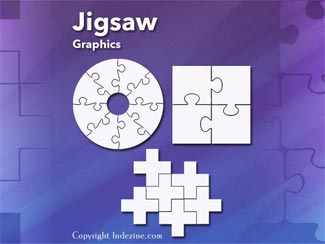
Jigsaws are puzzles that can be solved - but then jigsaws have numbers too! Each jigsaw puzzle has a number of pieces that
have to be fitted together, in the same way that many aspects of lives and businesses need to fit in with each other.

Jigsaws can add a whole new level of interest to a PowerPoint slide. Here are 10 jigsaw graphics containing different shapes.

These jigsaws can be used on their own, or also combined with other graphics such as a human head to create a larger concept!
Download and use these Jigsaw Graphics in your slides for just $4.99+
|
|
|
|
Learn PowerPoint
Color Models: HSL

We learned about the RGB Color model in a previous tutorial. And while computers can easily understand the fact that you mix red
and green to end up with yellow, that’s some strange logic to us humans which we shall never comprehend! For most of us, we
understand that mixing yellow and blue makes green. So how can we stay within the RGB color model, which computers understand, and
mix colors more creatively to use a method which we humans can understand? This need for a more creative model gave birth to the
HSL (Hue, Saturation, and Luminosity) color model.
Color Models: Luminosity in HSL

We explored the HSL color model broadly previously. Now, we will look at Luminosity, one of its three properties. So what is
Luminosity? Luminosity is the value that spans from pure black (darkest) to pure white (lightest). Now how does Luminosity
influence any color? If we change the Luminosity values to 0 (zero) for a given color, it does not matter what Hue or Saturation
values they have; they will all be black! This reasoning is easy to explain using an analogy. In a very dark room, if you switch
off the light you will be left with pitch darkness, and any object of any color will appear black. That’s precisely what’s
happening here too!
Color Models: Hue in HSL

Colors can be darker or lighter: and this in color terms is called Luminosity. Color can also be saturated (vibrant) or
desaturated (neutralized). Desaturation can be done to a lesser extent or more, and when it happens to the maximum extent
possible, that’s the same as completely neutralizing the color altogether. Think about converting a colored picture to grayscale
and you will understand what may be happening! This property of color is called Saturation. Now beyond Luminosity and Saturation
lies the Hue of color. You can have a blue that’s dark or light, and even vibrant or neutralized. But you can also have a green,
a red, an orange, a yellow, or any other color with those same attributes. This red, green, yellow, or blue property is nothing
else but the Hue of the color.
|
|
Learn PowerPoint 365 for Mac
Presentation Gallery

When launched, PowerPoint 365 for Mac typically opens the Backstage view that contains the Presentation Gallery. The
Presentation Gallery provides different ways to start your new presentation using a Theme, a recent presentation, a
not-so-recent presentation, or even a blank presentation. These and other choices are explained in this tutorial.
Text Placeholders vs. Text Boxes

Before exploring the concept of differences between text placeholders and text boxes, let us start with these thoughts: Aren't
text boxes and text placeholders the same? Are they really different? And why should anyone bother even if they are different?
All these are valid questions, and the answers to them form one of the most important foundations in learning to create more
structured presentations in PowerPoint.
|
|
|
|
|
|
|
|
|
|
|
|
|
|