|
PowerPoint and Presenting News
|
Clichés: Teamwork Pictures

Rob’s presentation had this picture concept and so did Sam’s – and so do countless other slides. What’s this picture concept that
populates so many slides? Why is it so popular? And more importantly–why is it so over-used? First of all, let’s admit that the reason
why a picture concept gets clichéd is because it is good to start with, but then, it’s too good for its own existence. Rampant overuse
means that the emotions that this picture concept evoked do not work anymore, and that’s exactly what happened with the teamwork
picture that showed many, many hands placed together. And now, just because some people over-used the concept, you have to find,
create, and use newer visual concepts to cater to that same emotion!
Learn why teamwork pictures such as hands placed together are so clichéd,
and what you can do about it.
|
|
Star Wars Style Credits Animation

The Star Wars Style Credits Animation presentation includes a sample slide in which the credits animate in the Star Wars style.
You can download this presentation and change the text in the animated text boxes as required.
Download and use these Star
Wars like slides.
|
|
5 Ideas to Help You Remember Your Speech

Yes, the title of this post is “5 Ideas to Help You Remember Your Speech,” but it could have been “Remember Your Story” or even
“Remember Your Narrative.” You could be using this speech, story, or narrative at a boardroom meeting, or presenting in front of
hundreds of colleagues. You could also be delivering a TED talk or speaking alongside your slides at a Pecha Kucha presentation.
Read more here.
|
|
So Many Slides: Conversation with Robert Befus

Bob Befus is passionate about helping scientists and clinicians present the results of their research.
In the 1980s, he co-founded Spectrum Multi Media Inc. as a full-service presentation graphics company servicing medical and
pharmaceutical organizations. In later years, the company name was changed to Research Presentation Strategies (RPS) to reflect its
focus on helping customers with high profile regulatory and scientific presentations.
In this conversation, Bob discusses ways of coping with the challenges
of managing many slides.
|
|
|
|
Learning Color

Quick - what's a better slide color: gray or red? Almost everyone will say gray is far better as a slide color than red. Most of the
time we agree, but then, color in itself is a fickle subject because what may work most of the time may not work in a different
scenario. Worse, a color that's not imaginable as a slide color may look attractive. Yes, stranger things have happened in the
unexplainable world of color.
Get started with learning more about color.
|
|
Learn PowerPoint 2016 for Windows
Hierarchical Guide Options

Enabling Guides for your presentation slides helps ensure that your objects are easily aligned, and also in the same relative
position in successive slides. But just enabling Guides is more like getting started. There’s so much more you can do, such as
customizing the Guides themselves using hierarchical options.
Working with Guides

Let’s start with the basics, what are Guides? Consider Guides as a Grid on your slide that you create. Each single Guide can be
moved, added, or deleted. Guides also have snap options that are always on. Once the Guides are made visible on the slide, all
objects that venture close enough to them just snap. Along with Rulers and Gridlines, Guides help you position your slide objects
with more precision, and you can make them work for you.
|
|
Learn PowerPoint 2016 for Mac
Format Slide Background
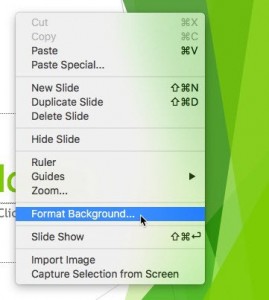
PowerPoint provides twelve default Slide Background Styles. Apart from these default Styles, you can continue changing the
default Slide Background to something else such as a solid color or gradient, a pattern or a texture, or, even a picture.
In this tutorial, we'll explore these options that can be accessed within the Format Background Task Pane.
Reuse Slides

Reusing your existing slides can be a great help: first you need not recreate stuff you already have and secondly you are saving
so much time that you can use more effectively to practice your presentation! Having said that, always start by creating an outline
of your presentation. This is important because it gives you an opportunity to plan your slides all over again. Thereafter, reuse
any existing slides. PowerPoint provides a quick command that locates specific slides, and enables you to add them to the active
presentation.
|
|
|
|
|
|
|
|
|
|
|
|
|
|