|
PowerPoint and Presenting News
|
Checklist for Using PowerPoint for Digital Signage Presentations

Haven’t you seen those signage boards everywhere, from restaurants to airports, and from conferences to corporate reception areas?
Do you know what makes them run? What makes the screens change? What makes the information get updated? And by
information, we mean everything from flight timings to menu prices, to video clips and weather conditions!
Read more in this post by Kurt Dupont.
|
|
Feature List 01 (Layout with Tabs)

The Feature List Layout comprises three sample PowerPoint presentations: one each to create a visual list for 4 features, 5
features, and 6 features. These work great when you have too much information to fit within one slide.

This solution lets you use multiple slides, but the visual result is still that of one single slide!
Buy and Download Feature List 01 (Layout with Tabs) for $4.99+ (671 kb)
|
|
New Features in PowerPoint: Embedded 3D Animations
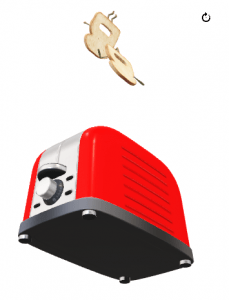
PowerPoint’s 3D experiences get more enhanced all the time. To begin with, the only way you could animate 3D models was by using the
Morph transition effect. Next, you could use the 3D animations. But now, with the new embedded 3D animations feature, you no longer
even need to animate, because these new 3D models are already pre-animated!
Learn more here.
|
|
|
|
Learn PowerPoint
Alternatives for Office Clip Art Gallery

Microsoft's Office Clip Art Gallery, which was earlier known as Office Online is being shut down. This includes Microsoft's
Office.com Clip Art and image search service, and also the Clip Art task panes in Microsoft Office applications such as PowerPoint,
Word, and Excel. The question then is, so what should you do when Office Clip Art goes offline? Here are some possible answers,
alternatives, and workarounds.
Getting Started with Morph

Every new release of PowerPoint brings forth new features, but only a few of them have made people sit up and take notice. The most
popular of these few changes has been the Morph transition effect. Now, the Morph transition effect is not available to everyone; at
the time of writing, this new transition effect was only available to PowerPoint 2016 users on both Windows and Mac platforms who
have a current Office 365 subscription. Additionally, some phone and tablet platforms, and also selected accounts of PowerPoint
Online support the Morph transition.
|
|
Learn PowerPoint 2016 for Windows
Getting Started with Sections

Sections in PowerPoint is a feature that lets you organize slides into segments or divisions for easier management. For instance, if
you have many slides, you may find the content difficult to handle, edit, or even deliver. And if you have a few slides, even then
you may have the need to organize them logically in Sections. The Section option within PowerPoint 2016 enables you to divide your
presentation slides into logical parts.
Set Standard 4:3 Aspect Ratio as Default

We explored and complained about how PowerPoint 2016 has made widescreen (16:9) as the default aspect ratio for new presentations.
Although you can change all these new presentations from Widescreen (16:9) to Standard (4:3) aspect ratio quite easily, it can be a
pain to remember doing so each time you create a new presentation! Of course, if you are happy with 16:9 slides, then you need not
read the rest of this tutorial — for everyone else, we’ll show how you can set your default aspect ratio to Standard (4:3).
Text Placeholders vs. Text Boxes

PowerPoint has three types of text container: text placeholders, text boxes, and shapes. We explain Shapes in our
comprehensive section on Shape tutorials. Let us now look at the other two text container types. Aren’t text placeholders and
text boxes the same? Are they different? Moreover, why should we bother even if they are different? All these are valid
questions, and the answers to them form one of the most important foundations in learning to create more structured presentations.
|
|
Learn PowerPoint 2016 for Mac
Add Picture Fills to Shapes
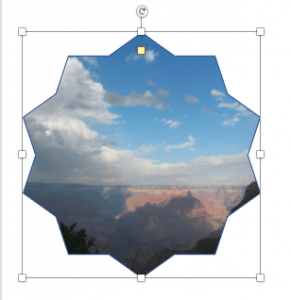
Picture fills may appear convincing or confusing depending upon the type of picture you use for the fill. Do remember that using
a detailed or crowded picture as a fill for a small shape will get you no awards for slide design! It is best to use pictures
that have one focused object or are subtle in nature for this purpose. Any shape on your slide in PowerPoint 2016 for Mac can
be provided with a picture fill in the same way as you add or change solid fills or gradient fills.
Advanced Picture Fill Options

After you apply a picture fill for a shape, you can explore options for transparency, tiling, etc. in PowerPoint 2016 for Mac.
These extra options can help if you want your picture fill to stand apart and look out of the ordinary.
|
|
|
|
|
|
|
|
|
|
|
|
|
|