
|
PowerPoint and Presenting News
|
Create and Animate a Car in PowerPoint
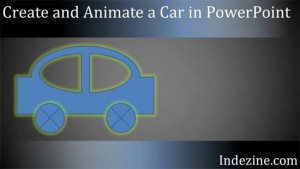
Some things are better shown than read! Creating or animating a car in PowerPoint is just one of those things. So in this video
tutorial, you will learn how you can use PowerPoint’s basic shapes to create a car, moving wheels, a steering, and even a driver!
We will then explore how you can animate them all at the same time.
Learn how you can create a simple car in PowerPoint and animate it, with moving wheels
too!
|
|
Polygon Center Circles for PowerPoint

These special circles have polygon centers: the centers are made of triangles, squares, pentagons, and hexagons! And based on
the sides of the polygon, the rest of the circle has that many segments.

You can use these Polygon Center Circles in any slide that needs to show 3, 4, 5, or 6 segments. Suitable themes for such
multiple segments include Unity, Continuity, Synchronization, etc.

Remember that the individual segments within the entire graphic Buy Now are all native PowerPoint shapes that are individually
selectable. They break the monotony of text heavy slides, and help you explain concepts better to your audiences. What's more,
these shapes are also so much fun to use!
Download and use these Polygon Center Circles in your slides for just $4.99
|
|
Presenting Quotes
Look Around You: by Nancy Duarte

Nancy Duarte’s Resonate is among the classic books that you can find about storytelling. Although you can read the book from cover to cover, you can also open any page and read to gain insight and wisdom that will help you immediately. |
|
Learn PowerPoint 2016 for Windows
Duplicate Slides

Duplicating slides is a task that can be helpful, yet its value is not always understood. The first question asked is why would
anyone want to duplicate slides? There are many reasons to do so. You may want to create another slide that is similar to what you
already have. You may also want to use the same slide twice, or create a slightly edited chart than what you already have on an
existing slide. Duplicating and editing a slide is easier than redoing it again.
Change the Numbered List Style

PowerPoint allows you to choose from several styles for your numbered lists. There are variations in digits, alphabets, and
Roman numerical styles. By default, PowerPoint 2016 for Windows uses the 1, 2, 3 style for numbered lists. And since you can
change bulleted list styles, it is only natural that you expect some changes to be allowed for numbered list styles too.
|
|
Learn PowerPoint 2016 for Mac
Types of Shapes

Shapes play a significant role within any slides you create for your PowerPoint presentation. In many ways, shapes are like
the building blocks of almost anything you do on your PowerPoint slides. PowerPoint provides hundreds of shapes efficiently
categorized into 9 types or categories. You can do so much with these shapes. For example, you can combine shapes to create
your own unique shapes, format shapes with fills, lines, and effects, and even group or layer them to create more amazing
graphics. You can even create flowcharts with these shapes. This tutorial explores the various types of shapes available within
PowerPoint.
Resizing Shapes

Once you insert shapes on a slide, you may realize that it's not the perfect size. Did you want it larger, or a wee bit smaller?
However you want your shapes resized, it's easy to make the size change in a jiffy, right inside PowerPoint 2016 for Mac. Like most
Microsoft Office programs, PowerPoint follows the concept of selection, then action. So, the first thing you may need to do to a
shape that you want to be resized is to select it! Any shape that is selected shows several handles.
|
|
|
|
|
|
|
|
|
|
|
|
|
|
|


