
|
PowerPoint and Presenting News
|
30 Million or a Billion PowerPoint Slides?

Since 2001, we have heard the 30 million figure as the number of PowerPoint presentations created each day. Many years
have gone by, and no one has provided a new, updated number—but someone did provide a number that was largely
unnoticed as the figure was a passing reference in a keynote that spoke about so much more?
Read more here.
|
|
Inform and Impress Your Clients with
Virtual Reality

Last week, I was amazed by what Lia (more famously known as P-Spice) shared with me. And yes, while what she showed was amazing,
the real 'amazing' part was how easy she has made it for anyone to play with Virtual Reality, and then use it in presentations
and elsewhere, to inform and impress your audience.
If you are interested in setting yourself apart with the latest technology, you are in for a treat!
That’s because I’m inviting P-Spice to hold a 1.5 hour training teaching you. Learn more now.

You won’t believe what’s now possible in VR - using only your phone and an internet connection.
|
|
An Update on “Safe Fonts” for PowerPoint

There is a lot of confusing, incomplete, and often misleading information out there about choosing fonts in
PowerPoint. Specifically, which fonts are considered safe to use when sharing files. Safe fonts are those that are
common to most users and therefore will not be substituted when your PowerPoint file is opened with an operating
system or Microsoft Office version that is different from your own. This is critical information for those who
build templates, especially when the templates and presentations created with them will be shared around the world.
Read more with Julie Terberg.
|
|
|
|
Bing Image Search
Bing Images Search by Layout

Searching for the right picture online involves more than just entering a search term and then praying that you
find a picture that works best for you! You need to do a little more, and that “little more” may be as simple a
task as using a filter on the Bing Image Search site. Several common filters are available to narrow down your
search results on Bing Images Search, and one of these filters is Layout. With the Layout filter, you can restrict
your search to pictures which are widescreen, square, or tall in orientation.
Bing Images Search by People

Some keywords just belong to people! Typically, most pictures that are related to movies, sports, community
activity, or physical fitness will have a human factor involved. So, it is not surprising that most pictures that
show up as results for such keywords include people! Bing Image Search’s People filter goes a little more further,
because it allows you to restrict your search to pictures where people’s faces are prominent, or their heads and
shoulders are more prominent. Unfortunately, this filter does not let you search for pictures with silhouettes or
even with no people at all—at least not yet.
|
|
Presenting Quotes
We’re All Going to Experience Bloopers: by Lisa Braithwaite
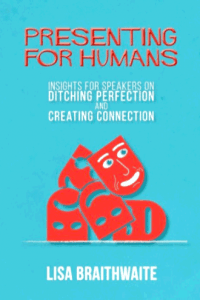
Lisa’s book is so easy to read. Just open any page, and there’s so much wisdom that will help you become a stellar presenter.
She provides tips and ideas on every presentation related topic from visuals and props to bloopers and humor.
|
|
Learn PowerPoint 2016 for Windows
Inserting a New Slide

Like many other tasks, you do in PowerPoint, inserting a new slide can be done in multiple ways. You just need
to find a way that works best for you — the following steps show you how you can do this simple task in
PowerPoint 2016.
|
|
Learn PowerPoint 2016 for Mac
Add and Rename Slide Masters

In your presentation, a Slide Master is the element that influences everything, be it the slide background or the fonts
used for text. Despite having different layouts, all slides in a presentation share a common look, which is provided by
the Slide Master. There will be at least one Slide Master in every presentation. However, while adding slides from other
presentations, you may end up adding more Slide Masters inadvertently to your presentation. So, how do you know how many
Slide Masters your presentation contains? And, how do you add another one? In fact, why do you need another Slide Master
at all? Whatever your opinion may be, it's actually quite easy to add a new Slide Master.
Duplicate Slide Masters

Duplicating a Slide Master is a little different than adding a new Slide Master from scratch. And it is a smarter option
because you do not have to make the same changes all over again. Let's explain this with a scenario. Imagine you have
formatted your existing Slide Master by applying a Background Style, adding a logo, or even adding your own Picture
placeholder layout. And now you want a new Slide Master that's almost the same as your existing one, but you want a
different Theme Colors set to be used. For such a small change, it is advisable that you duplicate your existing Slide
Master and make the small changes instead of starting all over again with a new Slide Master.
|
|
|
|
|
|
|
|
|
|
|
|
|
|


