
|
PowerPoint and Presenting News
|
iSpring Cloud: Conversation with Slava Uskov

Slava Uskov is a VP of Product Development at iSpring Solutions, an e-Learning software company. Together with
his team, he defines product strategy and roadmap, conducts thorough market and customer research, and decides on new features
based on actual user needs. In this conversation, Slava talks about iSpring Cloud, a cloud service for sharing presentations and
e-Learning courses on the web.
Read the conversation here.
|
|
Star Wars Style Credits Animation

The Star Wars Style Credits Animation presentation includes a sample slide in which the credits animate in the Star Wars style.

You can download this presentation and change the text in the animated text boxes as required.
Download Star Wars Style Credits Animation for just $4.99
|
|
Gear Graphics for PowerPoint - Series 1 of 5

Gears are amazing as graphics, and even more amazing when they are animated in unison with each other. Gears denote that
things are moving, something is happening, and it is happening concurrently as part of a team effort. Yes, gears mean
action. Have you ever wanted to use animated or non-animated gear graphics in your PowerPoint slides? For many people,
using gears and animating them in PowerPoint can be challenging! Why? That’s because gears come in all sorts of sizes, and
even the size of teeth in your gears can differ! And more importantly, the teeth of your gears may not move with each other
well. You may spend hours trying to sync gears with each other. Fortunately, we solved all these problems for you! We
created these special gear graphics for you that animate perfectly all the time. What’s more, we animated each of these
gears, so that you have a painless ready-to-use solution.
Download and use these gears in your slides.
|
|
STAMP Add-in in PowerPoint 2016, 2013, and 2010 for Windows
TTML XML Files

We already showed how you can use the STAMP add-in for PowerPoint to manually add captions for videos right inside
PowerPoint. While manually adding captions is a great way to get easily started, professional organizations use TTML files.
TTML files are markup files, not too different in structure from the HTML web pages, and typically they have the XML file
extension.
Import TTML Caption Files
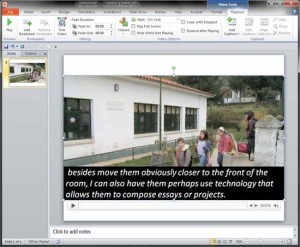
It's so easy to create and insert captions using the Caption Editor within the STAMP add-in for PowerPoint. But if your
captions already available as TTML files, you can import those captions into PowerPoint even more easily.
|
|
Presenting Quotes
Despite the fact: by Scott Schwertly
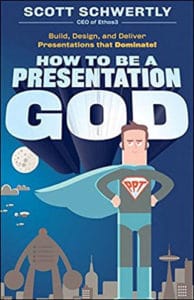
"Despite the fact that technology, psychology, and the business environment have changed drastically since the introduction
of PowerPoint, few presenters have adapted their craft to this altered environment."
|
|
Learn PowerPoint 2016 for Windows
File Formats

Quick, how many file formats (types) can PowerPoint 2016 save your slides to? If you take count of every single format from the
necessary to the irrelevant (and forget the missing ones), then the number is 28. Some of these could be genuinely helpful, such
as the MPEG-4 Video export and others like GIF, JPG, PNG, WMF, and EMF ensure that you get good graphic outputs. And RTF outlines
can sometimes be a boon.
|
|
Learn PowerPoint 2013 for Windows
Present Online

Many presenters are used to connecting their computers to projectors or display units and navigating through their slides as
they speak to a live audience. Yet, in the recent past, it’s become normal to present from your computer via a webinar, with
your audiences spanning different countries and time zones. You can use many webinar options, but did you know that Microsoft
included a basic, free option right inside PowerPoint? This option is known as Present Online.
|
|
Learn PowerPoint 2016 for Mac
Handout Master View

Handouts are documents you can print from within PowerPoint that include slide representations from your presentation.
PowerPoint lets you include as many as 9 slides on each Handout page. Of course, with 9 slides on a page, your slides will
look more like thumbnails. You can also choose to print just one slide on every handout page, so then your Handout pages will
look like individual slides printed on a page. Most Handouts are created to be printed, and the look and feel of these printed
Handouts is determined by the Handout Master. To access and make edits to the Handout Master, you need to get to the Handout
Master view in PowerPoint 2016 for Mac.
|
|
|
|
|
|
|
|
|
|
|
|
|
|
| |
| |


