|
PowerPoint and Presenting News
|
|
|
Learn PowerPoint: All Versions
Line Charts in PowerPoint

Line charts can display continuous data over time, set against a common scale, and are therefore ideal for showing trends in data at equal
intervals. In a line chart, category data is distributed evenly along the horizontal axis, and all value data is distributed evenly along the
vertical axis. Line charts are best used to represent evenly spaced values such as months, quarters, or fiscal years.
|
|
Learn PowerPoint 2016 for Windows
Keyboard Shortcuts
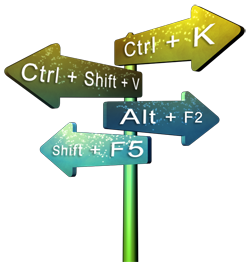
Here's the most comprehensive list of PowerPoint 2016 keyboard shortcuts that we know. How many of these do you presently use? Speed up your
PowerPoint usage with these shortcuts, and enjoy some free time!
Inspect Document

If you need to share a PowerPoint presentation with colleagues, or even publish it online, remember that your slides may include hidden data
or information that you or your company may not want to share. The Inspect Document option enables you to check your presentation for such
hidden properties and personal information, and clean whatever information or data you want to be removed.
Backstage View - New Tab

When you launch PowerPoint 2016, it always provides you with an option to open a new blank presentation. Further, if you are already working on
an open presentation, and want to create a new presentation at that point, you can do so using the New tab within the Backstage View.
Video Shapes

When you insert a video clip within a PowerPoint slide, you'll find it placed as a traditional rectangular shape. And that's what most users
expect, as it seems safe and conventional. However, PowerPoint allows you to have your video playing in different shapes such as a circle or
oval, or a wave, a triangle, or any of the shapes that PowerPoint's Shapes gallery includes. However, just the fact that a video can be placed
within a shape is no reason to forego the conventional rectangle. Do remember that most other shapes may crop out important parts of your video
clips.
Remove Bookmarks from Video Clips

After adding Bookmarks to video clips, you may want to know how you can edit and remove those Bookmarks. PowerPoint does not let you edit
inserted Bookmarks. For instance, you cannot change the time of the Bookmark from 25 seconds to 28 seconds. You will have to remove the Bookmark
you wanted to edit and add a new Bookmark all over again! On the other hand, removing a Bookmark is easy!
Fade Effect for Video Clips

When you insert a video clip in PowerPoint, you may find that the inserted video starts playing abruptly when started within the Slide Show view,
causing a jarring interruption to the flow of your slides. Fortunately, this is avoidable if you opt to add Fade In and Fade Out effects to the
beginning and end of your video clip.
|
|
|
|
|
|
|
|
|
|
|
|
|
|
|