|
||||
PowerPoint and Presenting News |
||||
|
by Geetesh Bajaj, December 13, 2016
View as a web page |
||||
|
||||
Learn PowerPoint 2016 for Windows
Changing Interface Color  When PowerPoint 2016 is launched, you see the Presentation Gallery. You will notice the bright orange section on the left side of the Presentation Gallery. Yes, you can change the bright orange to something else and end up with a different-looking PowerPoint program interface. We show you how to change the interface color in this tutorial. Adjust Picture Options  After a picture is inserted on your PowerPoint slide, you might want to make adjustments to the picture itself so that it looks distinctive and focused. You can change a picture's look by resizing, cropping, changing color values, adjusting saturation, or by applying artistic effects. In this tutorial, we'll explore the options available within PowerPoint 2016 to make these picture adjustments. Later, in subsequent tutorials of this series, you will learn more about the individual options we discuss in this tutorial. Picture Styles 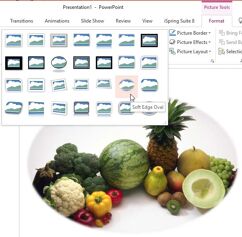 Similar to Shape Styles for the shapes on your slide, PowerPoint also provides Picture Styles for your inserted pictures. With a single click, Picture Styles can transform a simple looking picture to something that's more distinct. Note that unlike Shape Styles, Picture Styles are not Theme specific. They just transform your picture to make it look stylish by applying a border, or 3-D effect, or by changing the frame shape, etc. Picture Effects  After inserting pictures within your PowerPoint slide, you may want to change their appearance. You can add distinctive borders to your pictures or use the various Adjust Picture options. Alternatively, you can directly apply preset Picture Styles as well. These Picture Styles are based on PowerPoint's Picture Effects capabilities and add some effects with a click. Most of the time, this means that a single Picture Style adds a reflection, a glow, and a border to your picture. However, you can also apply any of these effects individually to your pictures. In all, PowerPoint provides 6 effects: shadow, reflection, glow, soft edges, bevel, and 3-D rotation. |
||||
Learn PowerPoint 2010 for WindowsSave as PDF  Saving a PowerPoint presentation as a PDF has its pros and cons. The biggest advantage is that recipients won’t be able to edit, and you can embed fonts easily. Disadvantages include that you cannot be multimedia-friendly. Whatever your thoughts may be, PowerPoint makes it very easy to create PDFs. |
||||
PowerPoint Templates from Indezine
|
||||
|
||||
PowerPoint Templates from MedicinePPT
|
||||
|
||||
PowerPoint Templates from LegalPPT
|
||||
|
||||
PowerPoint Templates from FreePPTTemplates
|
||||
|
||||
PowerPoint Templates from ChristianPPT
|
||||
|
||||
© Indezine. Please do not reply to this message
End NoteReceived this email from a friend? If you would like to join our mailing list, go here.Read past issues of this newsletter This newsletter provides more info on better PowerPoint usage and presentation design. You can also opt to get our RSS feed, where you can get updates through Feedburner. See our Privacy Policy. Follow on Twitter | Join our LinkedIn Group | Join our Facebook Group Do let us know how we are doing -- we love to hear from you! And if you enjoyed reading any content on Indezine.com, please do like them on Facebook and other social platforms, click the Google +1 buttons on all these pages, and tweet them all so that you can share these joys with others -- and keep your feedback coming! Have a fabulous week. Our PowerPoint and Presenting Blog is updated daily with information on what's new and happening in the world of PowerPoint. The Indezine News mailing list is powered by Aweber. If for any reason, you no longer want to receive this newsletter with valuable tips, resources, and information about PowerPoint and presenting stuff, you can unsubscribe by clicking the link at the end of this email. No hard feelings! {!global calltoaction} |