|
|
Create and Animate a Car in PowerPoint
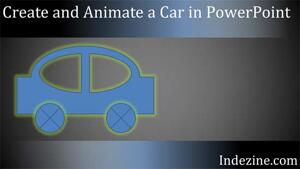
Some things are better shown than read! Creating or animating a car in PowerPoint is just one of those things. So in this video tutorial, you
will learn how you can use PowerPoint's basic shapes to create a car, moving wheels, a steering, and even a driver! We will then explore how you
can animate them all at the same time.
Learn how you can create a simple car in PowerPoint and animate it, with moving wheels too!
|
PowerPoint Transitions: Curtains

The Curtains transition effect was introduced in PowerPoint 2013 for Windows. If play slides using the Curtains transition effect in previous
versions such as PowerPoint 2010, you may find this effect substituted with the Fade transition effect.
Explore the Curtains transition effect in PowerPoint
|
|
|
Office Timeline's Integration with Wrike: Conversation with
Tim Stumbles
 Tim Stumbles
 is the co-founder of Office Timeline, a start-up focused on making project presentations simple. Office Timeline
offers timeline maker and Gantt chart software, natively built for Microsoft PowerPoint. With Office Timeline over 500,000 PowerPoint users
easily create impressive project presentations for important client and executive meetings. In this conversation, Tim talks about Office
Timeline's integration with Wrike.
Read the conversation here
|
Learn PowerPoint 2016 for Windows
 Add Your Logo or Graphic to the Slide Master
You may have observed an omnipresent company logo in many slides -- and that raises a question: do you really need to have a company logo on all
your slides? First, it takes a fair amount of space. Secondly, the audience knows which company the speaker belongs to since that information is
almost always placed on the first slide. Also speakers do introduce themselves and their companies -- so do all slides need that extra branding?
All these questions are fair, and there are equally fair answers for them. You should certainly add a company logo to your first slide, and then
place a more subtle or watermarked logo on the rest of the slides -- or even no logo at all. Fortunately, PowerPoint makes it easy to add a logo
to all your slides -- and then you can make it sure that some slides have no logo at all or even a more understated version of the logo.
Add and Rename Slide Masters
In your presentation, a Slide Master is the element that influences everything -- be it the slide background or the fonts used for text.
Despite having different layouts, all slides in a presentation share a common look, which is provided by the Slide Master. There will be at
least one Slide Master in every presentation. However, while adding slides from other presentations, you may end up adding more Slide Masters
inadvertently to your presentation. So how do you know how many Slide Masters your presentation contains? And how do you add another one? In
fact, why do you need another Slide Master at all?
|
Learn PowerPoint 2013 for Windows
Link to Excel Cells and Ranges
Do you want to link to an Excel file from within PowerPoint? You can then use the technique explained within our Linking to Any File in PowerPoint
2013 tutorial. However, click on the link, and you will end up opening your Excel file at the last saved location. What if you always wanted your
link to access a particular cell or a range of cells in Excel? This is possible, but you will rarely find this secret option documented at all!
|
Learn PowerPoint 2010 for Windows
Exporting PNGs and other Graphic File Formats (JPG, TIFF, WMF, EMF)
PowerPoint allows you to save your slides to many graphic file formats, which can later be used in other applications as required. One of the most
popular graphic formats that you can export your slides to is PNG. This tutorial will show you how you can export slides to PNG, but using the same
process, you can also export to other graphic file formats such as JPG, GIF, TIF, BMP, WMF, EMF, etc. Follow these steps to export some or all of
your slides to a picture file format such as PNG in PowerPoint 2010.
|
Sway Tutorials
 Navigation in Sway
If you have seen a couple of Sways, you will know that how you move from one Card to another can differ. In some Sways, you move from left to
right. In others, you move from top to bottom. You can control these options within your Sways, as we will explore within this tutorial.
|
PowerPoint Templates on Indezine
|
PowerPoint Templates on MedicinePPT
|
PowerPoint Templates on LegalPPT
|
PowerPoint Templates on FreePPTTemplates
|
PowerPoint Templates on ChristianPPT
|
|
|
|
|
|
|
|
|
End Note
Received this email from a friend? If you would like to join our mailing list,
go here.
Read past issues of this newsletter
This newsletter provides more info on better PowerPoint usage, and presentation design. You can also opt to get
our RSS feed, where you can get updates
through Feedburner.
See our Privacy Policy.
Follow on Twitter |
Join our LinkedIn Group
| Join our Facebook Group
Do let us know how we are doing -- we love to hear from
you! And if you enjoyed reading any content on Indezine.com, please do like them on Facebook and other
social platforms, click the Google +1 buttons on all these pages, and tweet them all so that you can share
these joys with others -- and keep your feedback coming! Have a fabulous week.
Our PowerPoint and Presenting Blog is updated
daily with information
on what's new and happening in the world of PowerPoint.
The Indezine News mailing list is powered by
Aweber.
If for any reason, you no longer want to receive this newsletter with valuable tips, resources,
and information about PowerPoint and presenting stuff, you can unsubscribe by clicking the link at
the end of this email. No hard feelings!
{!global calltoaction}
|
|


