
|
PowerPoint and Presenting News
|
Results of the 2019 Annoying PowerPoint Survey: Conversation with Dave Paradi

Dave Paradi has over twenty years of experience in delivering customized training workshops to help business professionals
improve their presentations. He has written nine books on the topic of effective presentations and is one of fifteen people
in North America recognized by Microsoft with the Most Valuable Professional Award for his contributions to the Excel and
PowerPoint communities. He is NASBA registered to deliver CPE credit courses to CPAs. In this conversation, Dave talks about
the results of his 2019 Annoying PowerPoint Survey.
Read the conversation here.
|
|
Handmade Slides: Pushpins for PowerPoint

These "pushpin" graphics are already placed in PowerPoint slides. Just copy them and paste within your slides to create a look that makes a picture, shape, or
anything else appear as if it has been pushed onto a surface, board, or wall with a pin! These ready-made pushpins are already within PowerPoint slides, and have
been provided in five colors. Just copy them and paste them on your slides.
Download these Pushpins for just $19.99.
|
|
Counterintuitive Research Findings

I have recently completed a research study on what makes PowerPoint presentations memorable. 1,540 people participated in the study
and after 48 hours, they remembered an average of 4 slides out of 20 slides they viewed. This finding is perhaps expected: unless
there is some repetition and enforcement, memory fades quickly. There were however a few observations that I found surprising and
almost counter-intuitive to what we’ve been taught as communicators.
Read more in this post by Dr. Carmen Simon.
|
|
Presentation Procrastinators: 04

Youth is wasted on the young. So said the author George Bernard Shaw. When I was in my 20s and just starting my career, I often
felt that people didn’t take me seriously, despite my skills and talents. The corporate culture, and managers and executives,
often filled me with a sense of intimidation and awkwardness.
Read more in this post by Kevin Lerner.
|
|
Presenting Quotes
If You’ve Ever Sat Through a Typical PowerPoint Presentation: by John Medina
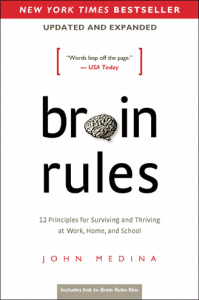
As you no doubt have noticed if you’ve ever sat through a typical PowerPoint presentation, people don’t pay attention to boring things. You’ve got seconds to
grab someone’s attention and only 10 minutes to keep it. At 9 minutes and 59 seconds, something must be done to regain attention and restart the clock–something
emotional and relevant. Also, the brain needs a break. That’s why I use stories in this book to make many of my points.
|
|
Learn PowerPoint 2019 for Windows
Reset, Export, and Import Ribbon Customizations

PowerPoint 2019 for Windows allows you to customize the Ribbon in a number of ways. You can add new Ribbon tabs, add Groups within
the Ribbon tabs, and populate these Groups with useful commands. And if you think you made a mess and were better off with the
defaults, then you can always get back to square one. On a more positive front, you can share your customizations with friends
and colleagues, or also your other computers. And you can export your customizations to a file saved as a backup for a rainy day!
|
|
Learn PowerPoint 365 for Windows
Adding Commands to Custom Groups

If you want to really benefit from customizing your Ribbon in PowerPoint 365 for Windows, then you will certainly want to add
some commands, beyond the ones that are placed by default within any of the Ribbon tabs. You’ll notice that all commands are
placed within Groups. Whatever your intent may be, you cannot place any commands within the existing Groups that are built within
PowerPoint. You first need to add a custom Group within any of the tabs available in the Ribbon. Thereafter, you need to populate
them with commands.
|
|
Learn PowerPoint 365 for Mac
Adding Commands to Custom Groups

If you want to really benefit from customizing your Ribbon in PowerPoint 365 for Mac, then you will certainly want to add some
commands, beyond the ones that are placed by default within any of the Ribbon tabs. You'll notice that all commands are placed
within Groups. Whatever your intent may be, you cannot place any commands within the existing Groups that are built within
PowerPoint. You first need to add a custom Group within any of the tabs available in the Ribbon. Thereafter, you need to populate
them with commands.
|
|
|
|
|
|
|
|
|
|
|
|
|
|


