|
PowerPoint and Presenting News
|
Do You Get in Your Own Way?

Can I walk around when I talk? What’s wrong with standing on the right side of the screen? Why can’t I use the arrow keys to move my
slides forward, or get someone else to do it for me? What happens when you get in your own way as you present? You dilute the
message, distracting both the audience and yourself. You lose the intent and focus of the talk. Here are some ideas on how not to get
in your own way.
Read more with Claudyne Wilder.
|
|
Night Sky Starlit Backgrounds

The ZIP file that you will download contains five Night Sky Starlit Backgrounds in three resolutions: Full Size: 4000x2250 pixels
(16:9), Widescreen Size: 1365x768 pixels (16:9), and Standard Size: 1024x768 (4:3).

Also included are five PowerPoint Presentations with Night Sky Starlit Backgrounds, set to work with the Morph transition. Yes,
these background designs can also animate between slides using PowerPoint's Morph transition.
|
|
Indezine Halloween PowerPoint Kit

The Indezine Halloween PowerPoint Kit is a self-contained set of content that provides everything you need to
create picture slides for PowerPoint. This kit contains a Halloween PowerPoint Theme, a scary font, some silhouette pictures,
scrapbook style embellishments, some pictures, and even a few sample slides. Use this kit as a starting point to create your own
picture slides! Then you can email your creations, or share them as a movie clip using PowerPoint’s Create a Video option. You can
also upload the presentation to online sharing sites.
Download and use this Halloween PowerPoint Kit.
|
|
How to Create Dashboard Software Using PowerPoint

PowerPoint makes amazing slides, but it is more than a program to create slides for presentations. Did you know that you can create some
amazing dashboards in PowerPoint? PowerPoint’s familiar interface and intuitive tools make it an easy task to create your own dashboards
quickly. Being so accessible and omnipresent, PowerPoint does provide so many benefits compared to other tools.
Read more in this post by Kurt Dupont.
|
|
|
|
Learn PowerPoint 2016 for Windows
Customize Quick Access Toolbar

The Quick Access Toolbar or QAT is the only toolbar available in PowerPoint. This toolbar can be customized and can contain your
most-used commands so that they are accessible to you with just a single click. There are two ways in which you can add your favorite
commands to the QAT. The easier way is to right-click any button on the Ribbon tabs and choose the Add to Quick Access Toolbar
option.
Add and Rename Ribbon Tabs

The Ribbon that you see within the PowerPoint 2016 user interface was designed to make all options easily accessible. To make more
options available, you can add more tabs, rename them, and populate them with even more commands, as we will explore within this
tutorial.
Working with the Ribbon (Reorder and Remove Tabs)
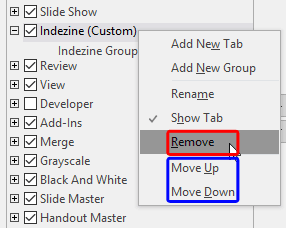
The PowerPoint 2016 interface sports the Ribbon, which is tabbed. Each of these tabs contains a set of commands. By default,
PowerPoint contains eight such tabs. These eight Ribbon tabs can be customized, and you can indeed add a new Ribbon tab as well.
|
|
Learn PowerPoint 2016 for Mac
Font Types and Sizes

Type text within PowerPoint, and the font type and size are decided for you, based on the Theme applied to your presentation.
For example, if you use PowerPoint's default Office Theme, then all your typed text will sport the Calibri typeface. You can
quickly change the Theme Fonts set altogether for your presentation, and all text instances will switch to the default typefaces
of the new Theme or Theme Fonts set. However, there may be times when you want to override these defaults and choose a typeface
that is different, or even a different font size. Let us now explore how you can choose different font types and change the font
size of the selected text on the slide in PowerPoint 2016 for Mac.
Font Dialog Box

Fonts are more than just pretty characters, and your choice of fonts can have a profound effect on how readable your text is to
the audience. We have already explored how you can format font styles to make your text bold, italicized, underlined, etc. Beyond
these basic offerings, PowerPoint 2016's Font dialog box offers some advanced format options for selected text. You can still change
the font type, set the font size, color, and other font attributes in this dialog box, and you can also do more. In this tutorial,
we'll explore font format options within the Font dialog box in PowerPoint 2016 for Mac.
|
|
|
|
|
|
|
|
|
|
|
|
|
|