|
PowerPoint and Presenting News
|
Bitmaps and Vector Graphics

Have you wondered why some pictures show jaggies on the edges when they are resized larger. Or why some pictures don’t show
jaggies when enlarged? Those jaggies have more to do with the type of graphics you’re resizing, and broadly speaking, there
are two types of computer graphics: bitmaps and vector graphics. If you use graphics often, understanding these two formats,
their differences, and how they are created is essential. To put in a nutshell, bitmap graphics get the jaggies when they are
resized. And vector graphics can be resized to any extent without the pixelated jaggies.
Learn about the differences between Bitmaps and Vector Graphics.
|
|
Keyboard Shortcuts and Sequences E-Book: PowerPoint 2016, 2013, 2011, 2010, 2007, and 2003

Are you aware of all PowerPoint keyboard shortcuts and sequences? Want to check if your favorites have been included in this
e-book, or if there are a few that can help you perform your PowerPoint tasks quicker and better? Or if you don't use keyboard
shortcuts and sequences, do you want to get started?

This 146 page PDF e-book downloads quick, costs you $9.99, and is a valuable resource.
The PowerPoint Keyboard Shortcuts and
Sequences E-Book covers the last five Windows versions of PowerPoint: PowerPoint 2016, 2013, 2010, 2007, and 2003. And also,
PowerPoint 2016 and 2011 for Mac.
Get this E-Book now for just $9.99
|
|
ToolsToo 7.2: Conversation with Gil Segal

Gil Segal is the creator of ToolsToo and a senior software consultant. Gil is always on the lookout for ways to automate
manual tasks in any software he uses and has been a PowerPoint power-user since the mid 90’s. In this interview, Gil talks about the new
ToolsToo v7.2 add-in for PowerPoint.
Read the conversation here.
|
|
|
|
Presenting Quotes
The Desire for More Positive Experience: by Mark Manson
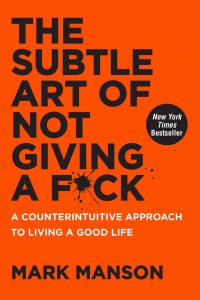
Mark really knows how to make the maximum impact with few words. More importantly, the profound wisdom and truth in his words
cannot be doubted, although the messages he provides are peppered with controversial words and ideas. Some people may find this
packaging helps them understand the message better.
|
|
Learn PowerPoint 2016 for Windows
Guide Options

Among the many features in PowerPoint 2016, there are some that are more useful than the others. Options for using Guides are
certainly vital. Many users are not aware of all the capabilities that Guides offer. For example, Guides can be added through the
right-click menu. You can add new Guides that are offset to your existing Guides. Guides need not be grey in color, you can choose
from 10 colors.
Picture Bullets

PowerPoint provides several bullet styles that you can choose from, but they do look a little canned since almost every PowerPoint
slide these days uses the same bullet styles! You could get rid of bullets altogether and use small sentences/paragraphs instead, or
maybe you could explore picture bullets, to insert any picture as your bullet. Of course, for picture bullets to work, your picture
needs to be small, no larger than a medium-sized dot. And it helps if it has transparent areas. If all this talk about the size and
transparency of a picture bullet makes you curious, don't worry because we explain it all!
Hierarchical Guide Options

Enabling Guides for your presentation slides helps ensure that your objects are easily aligned, and also in the same relative
position in successive slides. But just enabling Guides is more like getting started. There’s so much more you can do, such as
customizing the Guides themselves using hierarchical options.
|
|
Learn PowerPoint 2016 for Mac
Shape Combine Command

There are so many shapes available in PowerPoint, and that's good because that means so many more possibilities to create your
own unique shapes by using any of the Merge Shapes commands. One of the amazing options within Merge Shapes is Combine, which
retains areas where the shapes do not overlap while removing the overlapping areas. Think of Combine as an amazing cutout option!
Shape Union Command

The Union command is part of Merge Shapes commands in PowerPoint that lets you unite two or more shapes with each other. The
benefit of the Shape Union option is that you can quickly create complex shapes that may not have been easy to accomplish
otherwise within PowerPoint. The Union command combines all overlapping and non-overlapping areas of shapes, subtracts nothing,
and retains formatting of first selected shape.
|
|
|
|
|
|
|
|
|
|
|
|
|
|
|