|
||||
PowerPoint and Presenting News |
||||
|
by Geetesh Bajaj, January 10, 2017
View as a web page |
||||
|
||||
Learn PowerPoint 2016 for Windows
Change Picture  Imagine you inserted a picture in PowerPoint 2016, and then applied various picture editing options to enhance its appearance. For example, you may have added a border, applied some Picture Effects, etc. Probably, you then added both Fade and Zoom animations, synced them to happen together, and also timed the animations to occur at a particular speed. You may find yourself often doing these same tasks: adding all sorts of picture edits and animating them. And then you realize that you have a better picture, or your boss asked you to change the existing picture to another one, but with all the same effects and animations! Reset Pictures  Once a picture is inserted within PowerPoint, any manipulations you make to that picture are strictly only on the surface. The appearance of the picture changes on the slide, but the unaltered picture is stored within your PowerPoint presentation. This is an awesome feature because if you make many changes to a picture and then regret experimenting, you can just reset your picture rather than starting all over again! There's one caveat, though. The option to reset any picture back to its original form works only if you have not run any compression options for pictures within your presentation. Reposition Picture Fills with Crop  To make a visually strong PowerPoint presentation, you should use shapes and pictures. You can also fill your shapes with pictures. Maybe sometimes you end up with not so desirable results. Primarily, you'll find that PowerPoint insists on filling the entire picture within the shape. In the process, the picture itself may appear distorted. Fortunately, regaining this lost proportion is an easy option, as you will learn in this tutorial. Shape Effects  So what are effects? Effects are different than fills and outlines. With the plethora of effects available in PowerPoint, you can make a shape stand apart with a drop shadow. Other effects allow you to create convincing reflections, spreading glows, 3D bevel effects, and even soft edges. Even better, all these effects are not destructible and can be turned on and off at your will. Apply Preset Effects to Shapes  PowerPoint provides six types of Shape Effects; more than one of these effects can be applied to a selected shape. Some combinations of these effects look better than others. Having said so, practicing restraint not to go overboard with all effects is always a good thing. Also, trying out all the effect combinations may take a lot of time. Fortunately, the Presets option comes to your rescue. This option lets you use pre-combined combinations of the different effects. |
||||
Learn PowerPoint 2010 for WindowsDuplicate Slides 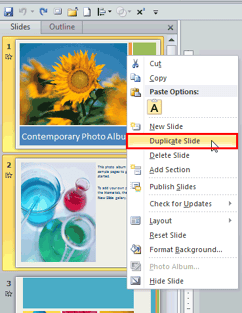 Why would anyone want to duplicate slides? There are many reasons to do so; you may want to such as to create another slide that is similar to what you already have. You may also want to use the same slide twice, or create a slightly edited chart than what you already have on an existing slide; duplicating and editing is easier than redoing it again. |
||||
PowerPoint Templates from Indezine
|
||||
|
||||
PowerPoint Templates from MedicinePPT
|
||||
|
||||
PowerPoint Templates from LegalPPT
|
||||
|
||||
PowerPoint Templates from FreePPTTemplates
|
||||
|
||||
PowerPoint Templates from ChristianPPT
|
||||
|
||||
|
|
||||
© Indezine. Please do not reply to this message
End NoteReceived this email from a friend? If you would like to join our mailing list, go here.Read past issues of this newsletter This newsletter provides more info on better PowerPoint usage and presentation design. You can also opt to get our RSS feed, where you can get updates through Feedburner. See our Privacy Policy. Follow on Twitter | Join our LinkedIn Group | Join our Facebook Group Do let us know how we are doing -- we love to hear from you! And if you enjoyed reading any content on Indezine.com, please do like them on Facebook and other social platforms, click the Google +1 buttons on all these pages, and tweet them all so that you can share these joys with others -- and keep your feedback coming! Have a fabulous week. Our PowerPoint and Presenting Blog is updated daily with information on what's new and happening in the world of PowerPoint. The Indezine News mailing list is powered by Aweber. If for any reason, you no longer want to receive this newsletter with valuable tips, resources, and information about PowerPoint and presenting stuff, you can unsubscribe by clicking the link at the end of this email. No hard feelings! {!global calltoaction} |