|
PowerPoint and Presenting News
|
To Close More Deals/Make More Sales–Avoid These
Presentation Mistakes

Every presentation is an opportunity to connect with potential clients and a well-crafted presentation can lead to more success for your business.
Whether we have a product, service or message, we are selling something! With great presentations, the secret is to grab your audience’s attention
at the beginning and keep them engaged until your final word!
Read more in this post by Karen O'Donnell.
|
|
Jeopardy-Like PowerPoint Template (25 Questions)

Want to play a Jeopardy-like game using PowerPoint slides? Yes, this is absolutely doable but making PowerPoint
slides with all the interactivity and layouts takes too much work. Fortunately, we have done the work for you.
Just download our Jeopardy-like 25 (5x5)
question PowerPoint template, replace the placeholders provided for questions,
answers, and categories - and you're done! You'll still need a real human being to track scores - and you could soon
be playing this amazing game as part of a fun exercise, a training program, or even a quiz show.

This template is entirely Theme aware. Change your Theme colors and fonts - and everything automatically updates.
We tested this template in both Windows (2007, 2010, and 2013) and Mac (2008 and 2011) versions of PowerPoint.
Download and play your own Jeopardy-like
game for just $9.99
|
|
Christmas PowerPoint Presentation

This presentation is a great introduction to why we celebrate Christmas for both Christian and non-Christian audiences. The
slides explain in a way that make this presentation relevant to any one from a primary school student to a senior citizen.
Download and view the presentation here.
|
|
Difference Between UPPERCASE and All Caps
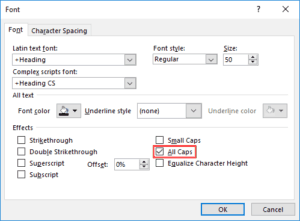
This has been a frustrating issue for many PowerPoint users, and also users of other Office programs. You type some text that is
sentence case, but the results are all capital case! Yes, you can use the Change Case option, but why should you have to do so for each
slide? The answer is not too obvious, and to understand why this happens, you must know that there are two ways to add capitalized text
in Microsoft Office programs!
Read more here.
|
|
Presenting Quotes
Business Thrives on Interaction: by Ally Yates

Ally explores ideas that will help you change your behavior so that you can increase your effectiveness and also achieve more success. How
does she do that? By explaining practical ideas, based on 30 years of her experiences in the corporate world.
|
|
Learn PowerPoint 2016 for Windows
Reading View

The repertoire of various views available in PowerPoint 2016 ranges from some views that you use all the time to others that you may
have never bothered to explore. The latter category probably includes Reading view. Reading view is similar to Slide Show view in
some ways because, in both views, the slide is shown in full-screen mode. However, in Reading view, you also see the PowerPoint
title bar and the Status Bar at the top and bottom of the interface respectively. Additionally, you can also view the Windows
taskbar at the bottom of the screen.
Handout Master View

Handouts are documents you can print from within PowerPoint that include slide representations from your presentation. PowerPoint
lets you include as many as 9 slides on each Handout page. Of course, with 9 slides on a page, your slides will look more like
thumbnails. You can also choose to print just one slide on every handout page, so then your Handout pages will look like individual
slides printed on a page.
Notes Master View

Each slide in your PowerPoint deck can have some notes associated with it, and these are placed in the Notes Pane area. Do you want
to print all these slide notes? Yes, you can. However, very few people realize that you can print these notes in the form of a
properly structured Notes Page. This might be among the least used PowerPoint options, but this certainly is among the most useful
ones!
|
|
Learn PowerPoint 2016 for Mac
Reordering and Removing Ribbon Tabs

The PowerPoint 2016 for Mac interface sports the Ribbon, which is tabbed. Each of these tabs contains a set of commands.
By default, PowerPoint contains several such tabs. These Ribbon tabs can be customized, and you can indeed add a new Ribbon tab
as well.
Working with Custom Groups in Ribbon Tabs

All Ribbon tabs in PowerPoint may have any number of buttons that represent commands but they are not scattered all over the
tab area. In fact, they are all neatly arranged together in Groups. Each of these Groups has a name that describes what the
commands within that Group do. It is only sensible to imagine that you should use this Group concept while creating your own
custom Ribbon tabs. In fact, PowerPoint will not let you add any command anywhere else other than within a custom Group.
|
|
|
|
|
|
|
|
|
|
|
|
|
|