|
PowerPoint and Presenting News
|
PowerPoint Feedback and UserVoice: Does This Go Anywhere?

Do you see the dashboard-like screen in the display shown in the picture? There’s a story behind that display! Feedback
from end users is always important for any product. However, what do you do when the product in question is PowerPoint?
Yes, the same PowerPoint presentation program that millions of people have been using for more than 25 years. Predictably,
feedback just needs to raise itself to a whole new level.
Shawn Villaron from Microsoft shares a story
|
|
Kick Your Presentations Into High Gear for Just $150!
Get excited, PowerPoint lovers. We convinced our friends at Pslides to create this drop-everything-right-now-because-you-can't-afford-to-miss-this deal with lifetime access
to over
10,000 PowerPoint presentation templates for just $150.

Now, usually, it costs $999 for lifetime access to our killer library. But, for a limited time only we're offering Lifetime Access for just
$150! Simply subscribe to their 'Lifetime Access' offer to gain access to their extensive PowerPoint template library. You have nothing to
lose. Just remember this offer is limited, and will only be available for a limited number of customers.

Get the Lifetime Subscription For just $150 (We Don’t Even Know What We Can Compare With!!)
|
|
Overcoming Clichés in Pictures

How many times have you seen the same globe visual used within a slide or even a picture of shaking hands?
Or a picture of a phone operator, or even some people smiling while working in an office? These are clichés,
but clichés on their own are not bad as a starting point to evolve further. Don’t stop there though, and
don’t decide that you have reached a conclusion with that predictable visual thought. In fact, there is not
one but four ways to discover more original thoughts that go beyond clichés!
Learn about clichés in using common pictures, and how you can overcome them.
|
|
Keyboard Shortcuts for PowerPoint Views

A reader asked if there were any shortcut keys in PowerPoint that could let her go from Normal view to Slide Sorter view?
The answer is both no and yes, no because there's no real shortcut to do that and yes because there is such an easy
workaround. What you need to do is quickly press the Alt + V keyboard shortcut to bring the View tab of the Ribbon in
focus, and then press the D key immediately thereafter. So you would use the Alt + V > D sequence to get to Slide S
orter view. Fortunately, you can quickly access all PowerPoint views with similar keyboard sequences.
Read more here.
|
|
|
|
Learn PowerPoint 2016 for Windows
Create PowerPoint Handouts

You may create the best presentation in the world, but what happens after the presentation has been delivered? Don't you want to
provide the information you presented in a document that you can distribute to attendees, or even send them a recap via email?
Handouts are meant for such occasions, and PowerPoint lets you create some amazing handouts from your slides, that can also contain
extra notes that were not visible on the slides. In this tutorial, we will explore an amazing option that creates handouts for
PowerPoint presentations in Microsoft Word.
Info Tab Options in Backstage View

In PowerPoint 2016, all information that you need about your currently active presentation is available in a single easily
accessible location. This location is the Info pane of Backstage View. Using the options available within this pane, you can
access information about permissions set for the active presentation, prepare your content for sharing, and also possibly recover
older versions of unsaved files. In addition, the Info pane also provides access to many more properties.
Remove Animations
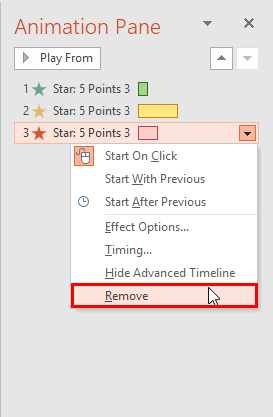
Removing an animation in PowerPoint is a simple select-and-delete task, but even before you remove any
animation, do ascertain why you want to remove it. Here are some obvious questions to consider before
removing animations: Do you want to remove both the animation and the slide object that is animated? Or do
you want to just remove the animation, and let the slide object be? Or maybe, you don't want to remove the
animation or the slide object. You just want to change the animation? Now that you have established what you
want to do, removing an animation is very easy.
|
|
Learn PowerPoint 2016 for Mac
Custom Backgrounds for Slide Master and Layouts

Content and appearance are the two major components of presentation slides. Among them, the former is always more significant
than the latter. But that does not mean you should neglect the latter. A simple looking presentation with a clean background
is always a great idea since that doesn't overpower your message. Yet, there are plenty of opportunities to go beyond a plain
background and use a less restrained background instead. Your choice for a slide background should complement the content of
your presentation. For example, you'll want a flashier background for slides created for kindergarten students, or if you were
creating a PowerPoint greeting card. On the other hand, you may want a washed out, faded, or even a subtle patterned picture
for a typical business presentation.
|
|
Learn PowerPoint 2013 for Windows
Export Word Handouts in PowerPoint

You may create the best presentation in the world, but what happens after the presentation has been delivered? Don't you
want to provide the information you presented in a document that you can distribute to attendees, or even send them a
recap via email? Handouts are meant for such occasions, and PowerPoint lets you create some amazing handouts from your
slides, that can also contain extra notes that were not visible on the slides. In this tutorial, we will explore an amazing
option that creates handouts for PowerPoint presentations in Microsoft Word.
|
|
|
|
|
|
|
|
|
|
|
|
|
|
| |
| |