
|
|||
PowerPoint and Presenting News |
|||
|
by Geetesh Bajaj, November 08, 2016
View as a web page |
|||
Techsmith Camtasia 9: Conversation with Jake Pechtel
Jake Pechtel is the Strategy Lead for TechSmith's popular screen recording and video editing desktop software, Camtasia. He has an extensive background in marketing and branding, as well as mobile games and applications. In this conversation, Jake discusses the new Camtasia 9. Read the conversation here |
|||
PresentationPoint VideoPoint: Conversation with Kurt Dupont Kurt Dupont, based out of Belgium heads PresentationPoint, a company that creates several amazing PowerPoint add-ins. After his Computer Science studies, Kurt started with Andersen Consulting (Accenture nowadays) in Brussels. After three years he moved to the Brussels Airport Terminal Company that runs the Brussels airport - this last placement inspired the start-up of Take-off (now known as PresentationPoint) in 1998. In this conversation, Kurt discusses VideoPoint, a PowerPoint add-in that displays your webcam output directly on a slide. Read the conversation here |
|||
Learn PowerPoint 2016 for Windows
Change One Shape to Another  Shapes tend to be similar to each other. You may work with one shape and then realize that you used the wrong one. Typically, users create a 5 pointed star when they need a star with 4 or 8 points, and that was just one example! Let's explore another scenario: you worked on a shape and applied effects, animations, and fills to this shape. Later you realize that you used a wrong shape, or perhaps the client wants you to change the shape but retain all the effects, animations, and fills! You may want to delete the existing shape and start over again, and that is a long drawn process. However, you don't have to do that for you can change any existing shape to another in PowerPoint 2016. |
|||
Learn PowerPoint 2013 for Windows
Insert and/or Link Pictures  When a picture is inserted on your PowerPoint slide, you are essentially doing a task that is frequent and commonplace -- and to you, this may look like an activity that's simple. But behind this simple task, there are options you may not be aware of. You know that pictures located in any of your folders can be inserted on a slide. However, have you wondered about the relation a picture on the slide has with the original picture located in your folder? By default, PowerPoint retains no relation -- even if you delete or move the original picture file you inserted, the copy on your slide will still be retained since PowerPoint saves the picture as a part of the file it creates. Yet, there are options within PowerPoint that let you maintain the relation between the original picture and the inserted picture -- for example, if you make changes to your original picture, PowerPoint will update its copy on the slide! Insert Online Pictures  It's always been possible to add pictures from an online source within PowerPoint. For more than a decade, this online source has been the pictures available online at Office.com. Now with a recent update, this option is no longer available in PowerPoint 2013. Instead, you can use the Online Pictures option. This feature is very helpful as you are not limited to just the pictures available on your system. You get other picture sources, some of which also include Creative Commons pictures. And all this happens within PowerPoint -- there's no need to open your web browser. Insert Picture from Bing  Now that inserting a picture from Office.com Clip Art is no longer an option, you can opt for the Bing option, which does provide Creative Common pictures. The Bing option shows picture search results directly within PowerPoint. Insert Picture from Flickr 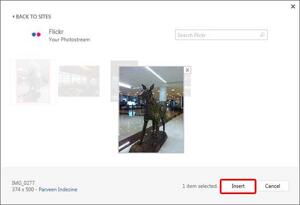 There are many, many options as far as inserting pictures from online sources within PowerPoint are concerned. Other than the Bing Image Search options, you can also access Flickr. Flickr is probably the greatest online resource of pictures uploaded by photographers and enthusiasts all over the world. However, unlike with the Bing option, PowerPoint does not allow you to insert Creative Commons licensed pictures from Flickr. You are only allowed to download and insert pictures from your own Flickr photostream. Needless to add therefore, you will need to have an active Flickr account with photos available to use this feature. |
|||
PowerPoint Templates from Indezine
|
|||
|
|||
PowerPoint Templates from MedicinePPT
|
|||
|
|||
PowerPoint Templates from LegalPPT
|
|||
|
|||
PowerPoint Templates from FreePPTTemplates
|
|||
|
|||
PowerPoint Templates from ChristianPPT
|
|||
|
|||
|
|||
© Indezine. Please do not reply to this message
End NoteReceived this email from a friend? If you would like to join our mailing list, go here.Read past issues of this newsletter This newsletter provides more info on better PowerPoint usage and presentation design. You can also opt to get our RSS feed, where you can get updates through Feedburner. See our Privacy Policy. Follow on Twitter | Join our LinkedIn Group | Join our Facebook Group Do let us know how we are doing -- we love to hear from you! And if you enjoyed reading any content on Indezine.com, please do like them on Facebook and other social platforms, click the Google +1 buttons on all these pages, and tweet them all so that you can share these joys with others -- and keep your feedback coming! Have a fabulous week. Our PowerPoint and Presenting Blog is updated daily with information on what's new and happening in the world of PowerPoint. The Indezine News mailing list is powered by Aweber. If for any reason, you no longer want to receive this newsletter with valuable tips, resources, and information about PowerPoint and presenting stuff, you can unsubscribe by clicking the link at the end of this email. No hard feelings! {!global calltoaction} |




