
|
|||
PowerPoint and Presenting News |
|||
|
by Geetesh Bajaj, September 20, 2016
View as a web page |
|||
Presentation Summit 2016: Conversation with Carmen Simon
Carmen Simon is a cognitive neuroscientist, bestselling author, and leading expert on using memory to influence decision-making. Her most recent book, Impossible to Ignore: Create Memorable Content to Influence Decisions, has won the acclaim of publications such as Inc.com, Forbes, and Fast Company, and has been selected as one of the top ten books of the year. Simon speaks frequently to industry, academic, and government audiences on neuroscience research findings related to the future of the human brain against the background of automation. She has over 20 years of experience in the fields of computer interface design, and multimedia, and holds doctorates in both instructional technology and cognitive psychology. In this conversation, Carmen discusses her keynote at the upcoming Presentation Summit 2016 series. Read the conversation here |
|||
Xara Designer Pro X: Conversation with Nova Fisher
Nova Fisher has worked within communications with Xara for over 15 years. She has previously founded and managed some successful early-to-market businesses including an internet service provider (ISP) which was founded in 1994, and the creation of one of the earliest online web authoring solutions in 1996, that enabled anyone to create a professional website without the need for any design or technical skills. In this interview, Nova talks about the new Xara Designer Pro X product. Read the conversation here |
|||
Learn PowerPoint 2013 for Windows Adding New Shape(s) to Existing SmartArt Graphics  Once you insert a SmartArt graphic within PowerPoint (or convert some bulleted text to SmartArt), you may want to add more shapes to your SmartArt graphic. Fortunately, you can make these additions and later edit them too. You can add more shape(s) to your existing SmartArt graphics either from within the SmartArt graphic itself or through the Text Pane. Note that adding a new shape to a SmartArt graphic entirely depends on the SmartArt variant that you are using -- some variants offer more options than the others. Delete Shapes from an Existing SmartArt Graphic  After inserting a SmartArt graphic within PowerPoint (or converting some bulleted text to SmartArt), you can easily add more shapes to your SmartArt graphics with just a click or two. You can even delete shapes from any existing SmartArt graphic. Change between SmartArt Graphic Layouts (Types)  After inserting a SmartArt graphic within PowerPoint or converting some bulleted text to SmartArt, you might want to change the layout of the SmartArt. You can choose from various SmartArt graphics variations available within PowerPoint 2013. In this tutorial, we'll show you how to change any existing SmartArt graphic to any other layout (type). Change Colors for a SmartArt Graphic 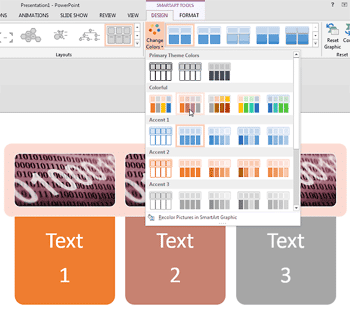 Although the default colors of an inserted SmartArt graphic may work the best, you may also want to change the colors of the shapes comprising the SmartArt graphic. You change the colors of everything within the SmartArt graphic at one go or change colors of individual shapes within the SmartArt graphic. Follow these steps to learn how you can change colors of your SmartArt graphic in PowerPoint 2013. |
|||
PowerPoint Templates from Indezine
|
|||
|
|||
PowerPoint Templates from MedicinePPT
|
|||
|
|||
PowerPoint Templates from LegalPPT
|
|||
|
|||
PowerPoint Templates from FreePPTTemplates
|
|||
|
|||
PowerPoint Templates from ChristianPPT
|
|||
|
|||
|
|||
© Indezine. Please do not reply to this message
End NoteReceived this email from a friend? If you would like to join our mailing list, go here.Read past issues of this newsletter This newsletter provides more info on better PowerPoint usage and presentation design. You can also opt to get our RSS feed, where you can get updates through Feedburner. See our Privacy Policy. Follow on Twitter | Join our LinkedIn Group | Join our Facebook Group Do let us know how we are doing -- we love to hear from you! And if you enjoyed reading any content on Indezine.com, please do like them on Facebook and other social platforms, click the Google +1 buttons on all these pages, and tweet them all so that you can share these joys with others -- and keep your feedback coming! Have a fabulous week. Our PowerPoint and Presenting Blog is updated daily with information on what's new and happening in the world of PowerPoint. The Indezine News mailing list is powered by Aweber. If for any reason, you no longer want to receive this newsletter with valuable tips, resources, and information about PowerPoint and presenting stuff, you can unsubscribe by clicking the link at the end of this email. No hard feelings! {!global calltoaction} |


