
This is the print version of this page. All content is copyright Indezine.com 2000-2026.
Learn about Standard Toolbar in PowerPoint 2011 for Mac.
Author: Geetesh Bajaj
Product/Version: PowerPoint 2011 for Mac
OS: Mac OS X
PowerPoint 2011 now sports the Ribbon interface but it still continues having menus and toolbars. Among the most important of the toolbars is the Standard Toolbar, which is located beneath the menu bar, as shown highlighted in red within Figure 1, below.

Figure 1: Standard Toolbar in PowerPoint 2011
If you can't find the Standard Toolbar within the PowerPoint 2011 interface, select the View | Toolbars | Standard menu option, as shown in Figure 2, below, to make it visible. Conversely, deselecting the same menu option will hide the Standard Toolbar.
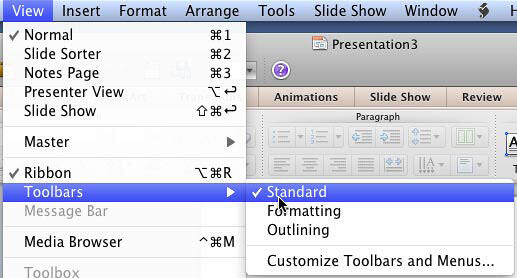
Figure 2: Standard Toolbar option in View menu
Now let us explore the options within the Standard Toolbar, as shown in Figure 3, below.
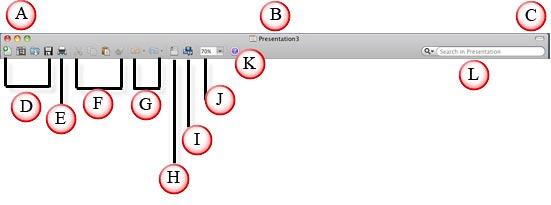
Figure 3: Standard Toolbar options
The icons and controls seen on the Standard Toolbar are explained below (please note that the window controls such as the title bar and show/hide buttons are not part of Standard Toolbar since they show up even if you hide this toolbar):
The upper-left corner of each window contains the standard Close button (red), the Minimize button (yellow), and the Maximize button (green).
The title is the filename associated with the window.
This button toggles the visibility of the toolbars between on and off. If you accidentally click this button and hide the toolbars, click again to restore them.
You can find these 4 icons to the extreme left of the Standard Toolbar. These icons allow you to (starting from the left) create new files, display the PowerPoint Document Gallery, open files in the Finder, and save your files.
This icon allows you to take a hard copy of some or all your content.
The next 4 icons are Cut, Copy, Paste, and Format Painter. The first three icons are used to cut, copy, and paste your content. Format Painter is the fourth icon in this group, and is used to copy the format of any selected content and to apply it to some other slide object.
The Undo option is used to go a step back in your work process (as in returning to the state of your presentation a click ago). The Redo icon is used to repeat the action which you cancelled using Undo.
Use this icon to show or hide the Toolbox.
This icon is used to show/hide the Media Browser window.
This selection box allows you to change the display size of the presentation slides. Just click the downward arrow and select the value in percentage, as shown in Figure 4, below within the drop-down list to change the display size of the presentation slides.

Figure 4: Presentation slide size drop-down list
Use this button to get help with PowerPoint 2011.
If you want to search for something in the presentation, use the search window that you can see on the extreme right of the Standard Toolbar, below, the show/hide button.
The Standard Toolbar in PowerPoint 2011 for Mac provides quick access to commonly used commands, such as creating new slides, saving presentations, and printing. Despite the introduction of the Ribbon interface in this version, the Standard Toolbar remains available for users who prefer a more traditional layout.
Yes, you can toggle the visibility of the Standard Toolbar. Navigate to the View menu. Choose Toolbars. Check or uncheck Standard to show or hide the toolbar, respectively. This feature helps declutter your workspace or provide quick access to essential tools as needed.
The Standard Toolbar offers a compact set of frequently used commands, while the Ribbon is a broader interface that organizes tools and features into tabs based on their functions. Some users prefer the Standard Toolbar for its simplicity and familiarity, especially if they are accustomed to earlier versions of PowerPoint.
01 05 18 - Interface Overview: Standard Toolbar in PowerPoint (Glossary Page)
You May Also Like: How to Make Long-Lasting Change | Pest PowerPoint Templates




Microsoft and the Office logo are trademarks or registered trademarks of Microsoft Corporation in the United States and/or other countries.
