Follow
Share
Bookmark and Share
Translate


Like This Page?
Like This Site?


Formatting Outlines for Shapes in PowerPoint 2010 -- Dash

Author: Geetesh Bajaj

Product/Version: Microsoft PowerPoint 2010
OS: Microsoft Windows XP / Vista / 7

Date Created: February 4th 2011
Last Updated: February 4th 2011


Excerpt/Capsule: Learn how to apply the dash attribute to the shape outlines in PowerPoint 2010.


Product Showcase


In previous tutorials, I have explained the formatting of shape outlines in PowerPoint 2010 and changing the weight of shape outlines. In this tutorial, I'll show you how you can apply a dash style to the shape outline. A dashed line in PowerPoint 2010 can have plenty of variations: from a line with fewer dashes to ones with longer or smaller dashes, or even alternating small and long dashes. Figure 1 shows you some variations in dash styles available in PowerPoint 2010.
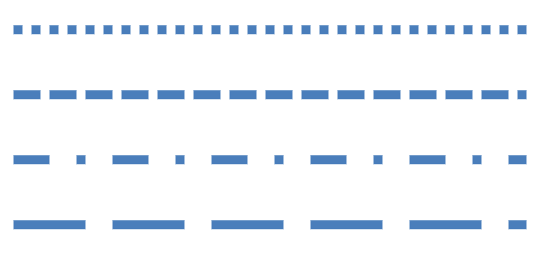
Dash attribute variations in outlines
Figure 1: Dash style variations in outlines

Tip: You can change the outlines for both shapes and pictures in PowerPoint 2010 -- you can also add a shape outline to an inserted movie using the same options!

Follow these steps to change dash styles for shape outlines in PowerPoint 2010:

  1. Select the shape that you want to change the line attributes for. Alternatively, if you just want to follow this tutorial step-by-step, launch PowerPoint. Most of the time, PowerPoint will open with a new slide in a presentation -- PowerPoint 2010 users can change the slide layout to Blank by selecting Home tab | Layout | Blank.

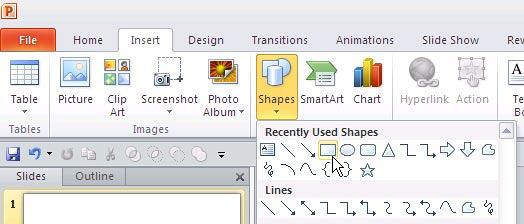
  2. Under the Home or Insert tab of the Ribbon, choose the Shapes button to view the Shapes gallery that you can see in Figure 2. Select the Rectangle shape or any other shape then either drag and draw, or click once on the blank slide to place an instance of the shape. (I used a Rectangle shape as you can see later in Figure 3).

    Shapes gallery
    Figure 2: Shapes gallery

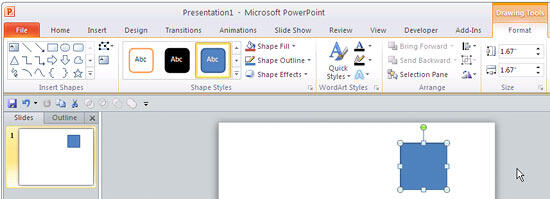
  3. Select the shape so that the Ribbon area now shows the Drawing Tools Format, as shown in Figure 3. Activate this Ribbon tab.

    Drawing Tools Format tab of the Ribbon
    Figure 3: Drawing Tools Format tab of the Ribbon


    Note: The Drawing Tools Format tab is a contextual tab, These tabs are special tabs in the Ribbon that are not visible all the time -- they only make an appearance when you are working with a particular slide object which can be edited using special options.


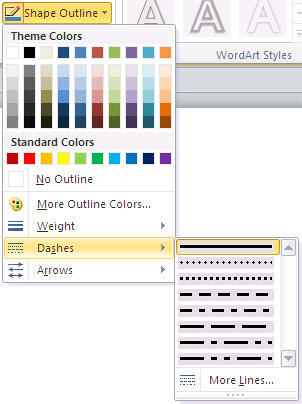
  4. From the Drawing Tools Format tab, locate the Shape Outline button, then select the Dashes option to view the Dashes drop-down gallery that you can see in Figure 4. Within this gallery, click on any Dash style to apply it to the selected shape.

    Dashes option in the Shape Outline gallery
    Figure 4:
    Dashes option in the Shape Outline gallery

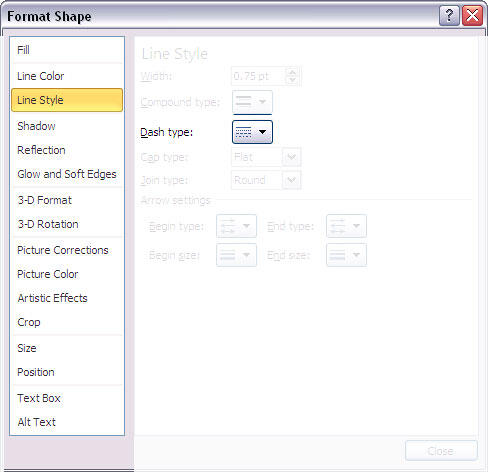
    This option is also available within Format Shape dialog box as shown in Figure 5. To access this dialog box, you just have to click the More Lines option (the last option you can see in the drop-down gallery in Figure 4 above).

    Dash type option in the Format Shape dialog box
    Figure 5:
    Dash type option in the Format Shape dialog box

    Note: As you can see, all of the options other than Dash type in Figure 5 have been grayed out in the screenshot. These other options have already been explained in the Formatting Outlines for Shapes in PowerPoint 2010 -- Weight tutorial page.


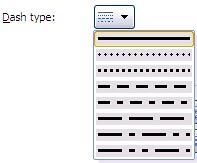
    Selecting Dash type option reveals a drop-down from where you can choose any of the dash styles available for shape outlines, as shown in Figure 6.

    Dash types in the Format Shape dialog box
    Figure 6:
    Dash types in the Format Shape dialog box

  5. After choosing required type of Dash, click the Close button to dismiss the dialog box. In Figure 7 below you can see the Rectangle shape we started with has a Round dot dash style applied.

    Shape with Round dot dash style applied to the shape outline
    Figure 7:
    Shape with Round dot dash style applied to the shape outline

  6. Save your presentation often.


Plagiarism will be detected by Copyscape


  ©2000-2012, Geetesh Bajaj. All rights reserved.

    since November 02, 2000