Home     PowerPoint     Photoshop     Photos     Other     Studio     Info

Bookmark and Share  


Recolor Images in PowerPoint

By: Geetesh Bajaj

Date Created: November 1st 2004
Last Updated: March 2nd 2009


Product Showcase


One of PowerPoint's most well hidden secrets is its ability to recolor images. Of course you can recolor vector clip art, but PowerPoint does have the ability to recolor bitmap images as well. That ability was never exposed in PowerPoint, but it's something you can use in Publisher. What deserves mention here is the fact that both PowerPoint and Publisher use the same OfficeArt engine as do most of the other Microsoft Office applications.

We'll explore two ways to recolor images in PowerPoint. The first procedure does everything within PowerPoint but is limited to recoloring images that are part of the background in a slide master. The second procedure uses copy and paste between Publisher and PowerPoint to recolor all sorts of images.

There's one thing you need to be aware of: by recoloring, I mean creating "duotone style" two color images like black and white, red and white, blue and white, etc. These are not pure duotones. For all practical purposes, PowerPoint converts a color image to grayscale and changes the mapped black values to another pure color.

I want to thank Howard Cooperstein, Lead Program Manager of the Graphics Product Unit at Microsoft Corporation for all his help without which this page would not have been possible.


Recoloring Backgrounds in a Master

This tutorial uses PowerPoint 2003.
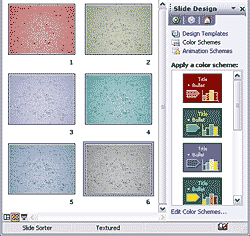
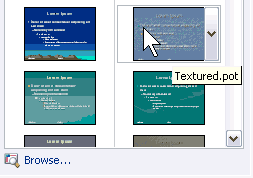
  1. Launch PowerPoint and opt to create a new presentation using a design template. This will activate the Slide Design template.

  2. This tutorial will only work if you select any of these three pre-built slide design templates:

    - Clouds
    - Ocean
    - Textured


    I repeat - you need to choose any of the above templates since Microsoft exposed the image recoloring algorithm only in these templates. I chose the Textured template, but you could choose any of the three for the rest of this tutorial.

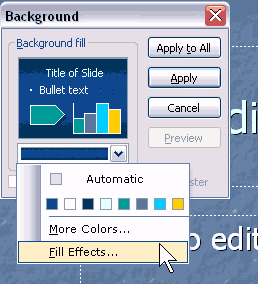
  3. Choose View | Master | Slide Master. In the Slide Master view, choose Format | Background. You should be presented with the Background dialog box. Click on the fill drop down box and choose the Fill Effects option.


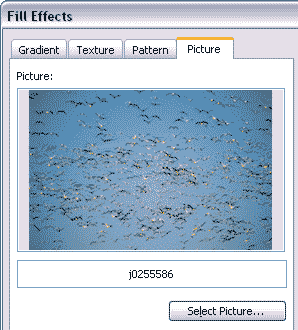
  4. In the resultant Fill Effects dialog box, select the Picture tab and click the Select Picture button and choose any other picture. Click Apply to All in the successive dialog box. Choose View | Normal to get back to the default editing view in PowerPoint.


  5. Choose Format | Slide Design and then choose Color Schemes in the Slide Design task pane. Click on various color schemes to view a duotone style background image on the slide. The color of the resultant duotone style background is directly related to the slide background swatch of the active color scheme.


Recoloring PowerPoint Images in Publisher

PowerPoint 2003 and Publisher 2003 were used for this tutorial.
  1. This is a fairly simple process. Place all required images on a PowerPoint slide and launch Publisher, where you should create a blank print publication.

  2. Select the image in PowerPoint and choose Edit | Copy. In Publisher, choose Edit | Paste. Since all Office applications use the same art engine, it's almost the same as exchanging content inside the same application.

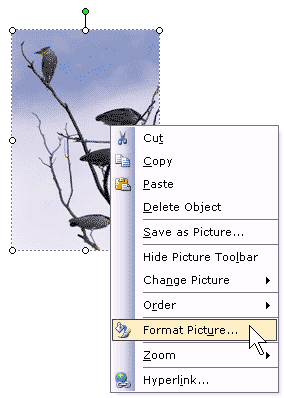
    In Publisher, right click the image and select Format Picture.


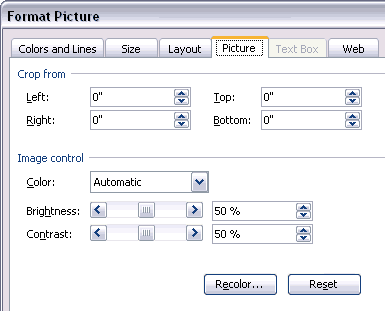
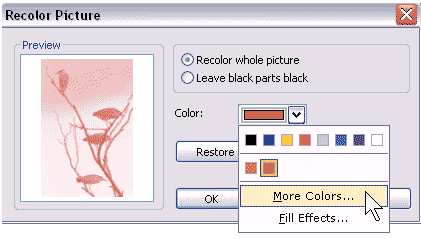
  3. In the Format Picture dialog box, select the Picture tab and click the Recolor button.


  4. Click the Color drop down box, choose More Colors and select the color you need.


  5. Copy the image (Ctrl+ C) from Publisher and paste it (Ctrl + V) inside the PowerPoint slide.

Note: You can achieve more consistent results if you note down the RGB values of the slide background color in PowerPoint (in Color Schemes) - and then use the same RGB values to colorize in Publisher.


You can download the sample presentation created using both the techniques here (96 kb)...


Featured Story

Adobe Captivate's Edit View

In an earlier post last week, I discussed Adobe Captivate's views and compared them to PowerPoint's deafult views. I also explained about the Storyboard View. In this post, I'll look at Captivate's Edit view, which in many ways is similar to PowerPoint's Normal view. If you are not already in Edit view within Captivate, choose the View drop-down in the toolbar, and select Edit View.

Learn more here...


Featured Book

PowerPoint 2007 Complete Makeover Kit

PowerPoint 2007 Complete Makeover Kit
PowerPoint 2007 Complete Makeover Kit is out! Check the book on Amazon.com...

And here are some free excerpts...


Home |  PowerPoint |  Photoshop |  Templates |  Blog |  Notes |  Ezine |  Studio |  Advertise |  Feedback |  Info |  Site Map
Store  |  RSS |  Privacy |  Testimonials
Free PowerPoint Backgrounds | Free PowerPoint Templates | Free Christian PowerPoint Backgrounds
Page copy protected against web site content infringement by Copyscape
  Page copy protected against web site content infringement by Copyscape


  ©2000-2009, Geetesh Bajaj. All rights reserved.

    since November 02, 2000