
This is the print version of this page. All content is copyright Indezine.com 2000-2026.
Explore patterned lines, a lesser-known hidden option in PowerPoint.
Author: Geetesh Bajaj
Product/Version: PowerPoint
OS: Microsoft Windows and Mac OS X
Talk about patterned lines in PowerPoint, and you might get the same reaction as if you’d asked someone to explain quantum physics at a dinner party—blank stares, nervous laughter, and a sudden interest in dessert.
But fear not! Patterned lines are not rocket science. They’re more like the fashion accessories of your PowerPoint shapes and borders—think of them as the pinstripes, polka dots, or checkerboards that jazz up an otherwise plain line.
In PowerPoint-speak, every object—whether it’s a shape, a text box, or even a chart—has two main style ingredients:
Now, a patterned line is just a fancy version of that border. Instead of a solid color, it’s made up of tiny repeating designs—like zigzags, dots, or dashes. It’s PowerPoint’s way of saying, “Why settle for plain when you can have pizzazz?”
Here are some samples of patterned lines:
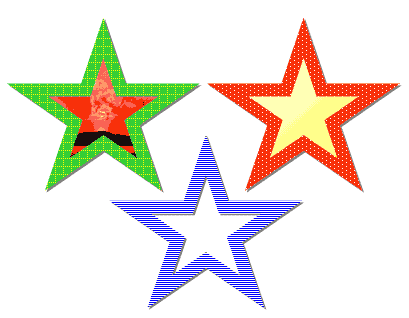
Figure 1: Samples of Patterned Lines
So, you want to add patterned lines to your shapes in PowerPoint? Think of it like giving your rectangles and circles a snazzy pair of striped socks or polka-dot borders. But here’s the twist: how you do this depends on which version of PowerPoint you’re using—and yes, it’s a bit like trying to find the right charger for your old flip phone.
If you’re using PowerPoint 2003 or one of its prehistoric cousins (we’re talking dial-up era here), adding patterned lines is a breeze. Just a few clicks and boom—your shape is rocking a zigzag or checkerboard outline like it’s headed to a retro party.
Now here’s the weird part: newer versions of PowerPoint (2007 and beyond) still support patterned lines. That means if you open an old presentation with those funky borders, they’ll show up just fine—like a vintage car that still runs. But—and it’s a big but—you can’t add new patterned lines in these versions. Microsoft tucked that feature away. We’ll dive into how to work around this limitation in a future tutorial (spoiler: there are clever hacks!). But for now, let’s roll up our sleeves and explore how to add those patterned lines in PowerPoint 2003 and earlier:

Do you want more keyboard shortcuts?
Explore our PowerPoint Keyboard Shortcuts and Sequences Ebook that is updated for all PowerPoint versions.
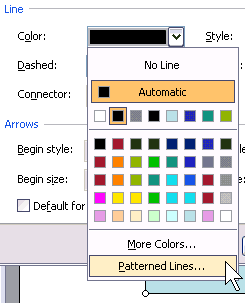
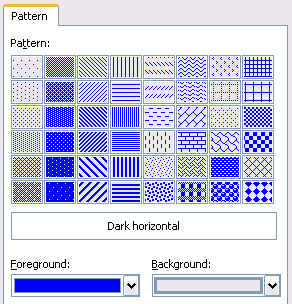
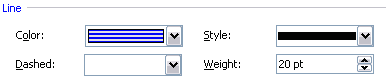
Patterned lines and fills can help persons with color vision deficiency differentiate between objects.
19 04 07
Patterned Lines in PowerPoint 365 for Windows
You May Also Like: The Bezos Blueprint: Conversation with Carmine Gallo | Comparing the Speaking Style of Liz Truss and Boris Johnson




Microsoft and the Office logo are trademarks or registered trademarks of Microsoft Corporation in the United States and/or other countries.
